AnkiWeb
- Votes
- 0 (👍 0 · 👎 0)
- Updated
- 2026-10-24
- Anki versions
- 2.1.66~
- Languages
- Python, JSON
- Description language
- en
AnkiWeb addon 1041663906
Turns anime episodes into Japanese study sessions with clickable subtitles, instant dictionary lookup, i+1 line detection, and one-key sentence or word cards with audio and screenshots.
Open on AnkiWeb GitHub Ask about alternatives
active
| Min Anki | Max Anki | Updated |
|---|---|---|
| 2.1.50 | 2.1.66+ | 2026-10-24 |
Loading…
Backfills Japanese vocabulary notes with example sentences, screenshots, audio and translations from Nadeshiko, Immersion Kit or local Aobana sources, either deck-wide, for selected notes, or by hotkey while reviewing.
Provides instant hotkey-activated Japanese dictionary popups in Anki's reviewer and editor, showing definitions, pitch accents, and frequency with deinflection, customizable themes, and local SQLite caching.
Provides instant popup dictionary lookup and translation on text selection or double-click in nine languages, with audio pronunciation, IPA, definitions, and Ctrl-click inline field editing.
Automatically fills Japanese vocabulary and sentence flashcards from a typed word or sentence, adding translations, kana readings, kanji readings, transitivity, part-of-speech, offline dictionary lookups, and Google TTS audio.
Provides in-card popup dictionary lookup during Anki review, supporting Yomitan/Yomichan dictionary ZIP imports, multilingual searches, Japanese deinflection, kanji details, and optional Hanzi stroke-order practice.
Provides an offline Yomitan-style popup dictionary with fast SQLite lookup, pitch accents, clickable kanji details, shadow DOM/iframe scanning, font customization, and instant theme presets across Anki's Reviewer, Editor, and Browser.
Learn Japanese by watching anime, without leaving Anki.
Ankime is a video player with clickable subtitles. The Yomitan dictionary allows you to look words up without pausing the episode, and when a line is worth keeping, you can turn it into a card with a single shortcut, audio and screenshot included.
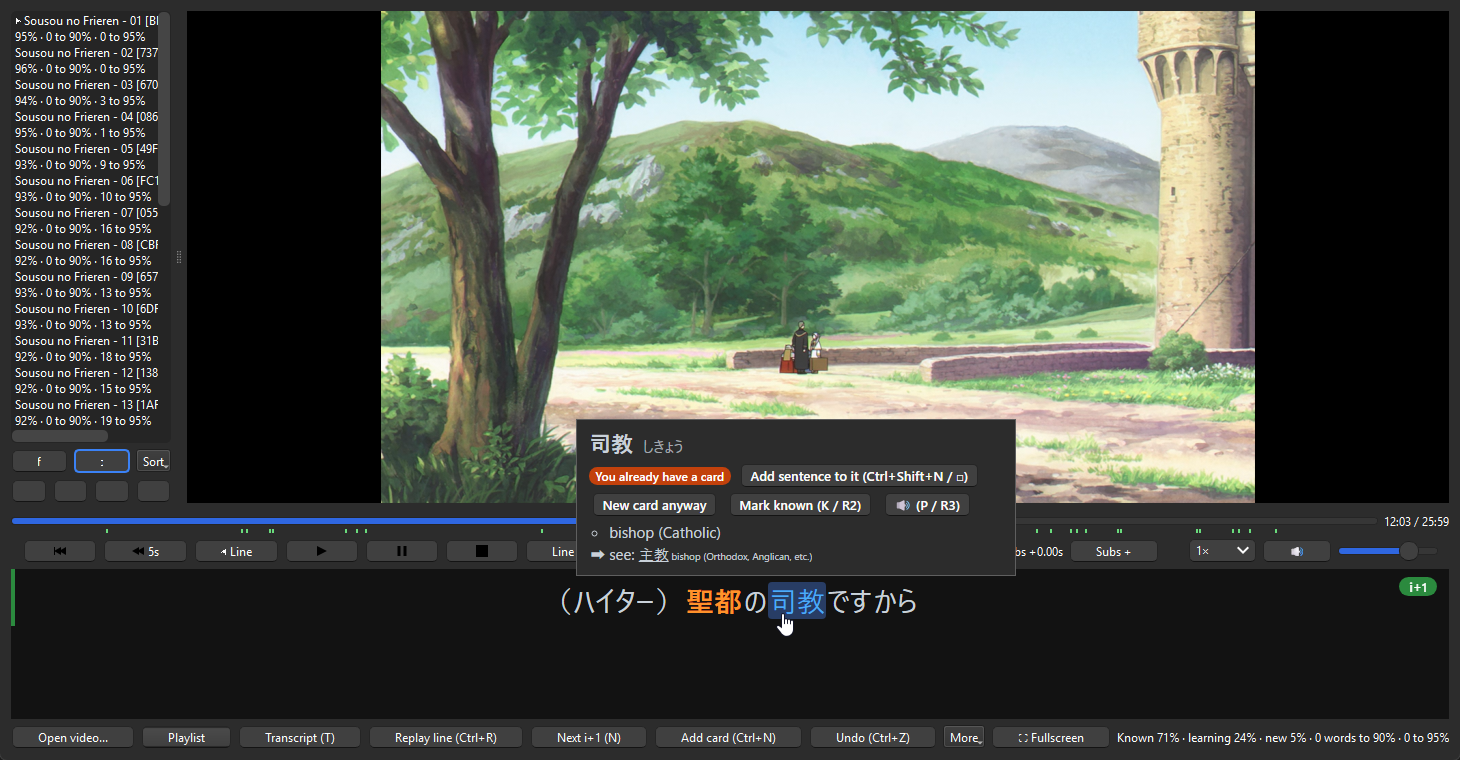
Please note: When loading an episode, the player will parse the subtitles and compare the known words with the cards in your collection. Please allow a few seconds for the subtitles to appear.
brew install mpv ffmpeg. Linux: install them from your package manager.ep01.ja.srt), or search Jimaku from the player's More menu.Full documentation, keyboard shortcuts and settings reference: github.com/ReevePrime/Ankime
Bugs and feature requests: GitHub issues. Please attach user_files/ankime.log (Tools > Add-ons > Ankime > View Files).
Disclaimer: This is my first Anki addon and I have not been able to test it personnally on Linux and macOS. I believe the addon should work fine, but in case of issue, let me know on Github.
Ankime is an Anki add-on for learning Japanese by watching anime. You get a video player with clickable subtitles, you look words up without leaving the episode, and when a line is worth keeping you press one key and it becomes a card, audio and screenshot included.

What it does:
It's Japanese only for now: word splitting, particles and known-word matching are all built around Japanese.
Contents
mpv-dev-x86_64-….7z from sourceforge.net/projects/mpv-player-windows/files/libmpv, unpack it, and point Ankime at the folder with libmpv-2.dll in it.brew install mpv. Ankime will find it on its own.sudo apt install libmpv2, sudo dnf install mpv-libs, etc.).yt-dlp -U), since sites change all the time and old versions stop working.ep01.ja.srt for Japanese, plus ep01.en.srt if you want a translation too. Don't have any? Try More > Search Jimaku... (more on that in Subtitles).| Key | Action | Key | Action |
|---|---|---|---|
| Ctrl+N | Add sentence card | Space | Play / pause |
| Ctrl+Shift+N | Add card for the selected word | Left / Right | Rewind / forward |
| Ctrl+Z | Undo | A / D | Previous / next line |
| Ctrl+E | Edit the last card | Ctrl+R | Replay line |
| C | Copy the line | ||
| K | Mark the selected word known | L | Loop line |
| P | Play the selected word's audio | N | Next i+1 line |
| Shift+Left / Right | Select previous / next word | T | Transcript |
| Ctrl+Up / Down | Card takes the previous / next line too | Ctrl+T | Translation hidden / blurred / shown |
| Z / X | Subtitles earlier / later | F | Fullscreen |
| Shift+Z | Sync: the nearest line starts now | Ctrl+F | Search your library |
All of them can be changed on the settings' Hotkeys tab (see Hotkeys for every action). A gamepad works too: see Gamepad.
All of this happens in the player (Tools > Ankime > Player...). Most of the extra stuff is tucked away in its More menu.
Ankime finds subtitles next to the video by name. Tags in the file name set the language.
| File | Read as |
|---|---|
ep01.ja.srt / ep01.jpn.srt |
Japanese (source) |
ep01.en.srt / ep01.eng.srt |
Translation (target) |
ep01.srt (no tag) |
Japanese |
| Embedded text track | Matched by its language |
Subs folder, an odd name). The choice is remembered for that video.ep01.ja.srt, never over an existing file (it becomes ep01.ja.jimaku.srt instead). .zip archives are unpacked. It needs a free Jimaku account: generate an API key on its account page and enter it in Ankime Settings > Player.ep01.ja.synced.srt.whisper-cli plus a multilingual ggml model) and set it as the Transcriber. More > Generate subtitles from speech (or Generate from speech in the Jimaku search) transcribes the audio track playing and saves ep01.ja.whisper.srt. A GPU makes it take minutes; on a CPU it can take longer than the episode. Speech recognition makes mistakes, so check a line against the audio before mining it.Show or Show/Season 1) and syncs to your other computers.Each word in a line gets one of three statuses, read from your cards:
| Status | Rule | Default look |
|---|---|---|
| New | No card, not marked known | Orange, bold |
| Learning | Strongest card's interval is under Known interval (21 days) | Blue |
| Known | Strongest card's interval is at least 21 days, or marked known | Plain |
Tools > Ankime > Dictionaries... (or Dictionaries... on the settings' Lookup tab) manages dictionaries Ankime reads by itself, so no browser has to be open.
user_files/dictionaries.sqlite (about 135 MB with JMdict).ankime::Show (or ankime::Show::Season_1).An i+1 line has exactly one new word. Learning words and names don't count as new.
| Line filter | What plays |
|---|---|
| Off | Everything |
| Skip known | Jumps over lines with no new word |
| Only i+1 | Only lines with exactly one new word |
| Jump i+1 to i+1 | Goes straight from one i+1 line to the next, skipping the gaps too; continues into the next playlist episode |
Type a word (or select one in the subtitles) and you'll see every line it appears in, across every episode Ankime has analysed so far. i+1 lines are listed first. Double-click a result to jump straight to it.
Next to each episode in the playlist you'll see how many of its words you already know, and how many more you'd need to learn to reach 90% or 95% coverage. Use Sort > Best coverage first to put the easiest episodes at the top.
More > Mark known from a word list... (or Tools > Ankime > Known words, without the player) reads:
| Source | What becomes known |
|---|---|
JPDB review history (vocabulary-reviews.json) |
Words set aside as known, and words whose last review passed at least Known interval days after the previous one |
| Migaku export (CSV / JSON) | Only words with status KNOWN |
| Plain list | One word per line, or the first Japanese column of a TSV / CSV (or a column headed word) |
Export known words... saves all known words, or only those marked known (as a backup). Formats: Ankime's list, or a bare list for JPDB or Migaku. Undo takes an import back.
Open it from More > Immersion log.... There are three tabs:
ankime:: tags.Just plug in a controller and it works whenever the player window is focused. The default layout:
| Button | Action | Button | Action |
|---|---|---|---|
| Left stick ← / → | Previous / next word (opens its definition) | A | Add sentence card |
| Left stick ↑ / ↓ | Card takes the previous / next line too | X | Add card for the selected word |
| Right stick ↑ / ↓ | Scroll the definition | Y | Show / hide the definition |
| D-pad ← / → | Previous / next line | B | Close the definition / leave fullscreen |
| D-pad ↑ | Replay line | D-pad ↓ | Next i+1 line |
| LB / RB | Rewind / forward | LT | Undo |
| RT | Mark the selected word known | Start / Back | Play / pause, fullscreen |
| Left stick press | Loop line | Right stick press | Play the word's audio |
On a PlayStation controller, A is ✕, B ○, X □, Y △, LB L1 and so on. Held down, moving through the words, scrolling the definition, the volume and the subtitle delay repeat. To remap buttons, see the Gamepad tab.
| Syncs through AnkiWeb | Stays on this computer |
|---|---|
| Words marked known | Playlist and resume positions |
| Subtitle delays | Tokenisation and frequency caches |
| Immersion log | Volume, speed, panel widths (state.json) |
| Ankime's own dictionaries, and libmpv / ffmpeg if Ankime downloaded them |
Each computer writes its own entry and they are merged when read, so changes made on two computers between syncs are all kept.
All settings are in Tools > Ankime > Settings, on six tabs. Advanced (JSON)... opens every key in a text editor, with config.md beside it. Only the settings you change are saved; the rest follow the defaults, even when a new version changes them.
Changes apply at once, even in an open player, except:
| Setting (JSON key) | Default | What it does |
|---|---|---|
Deck (deck) |
Default | Deck for new cards |
Note type (note_type) |
Basic | Note type for new cards. Create Ankime note type adds one with a field for everything |
| Preset | — | Fills every field for Lapis, JP Mining Note, Kiku, Senren or Kaishi 1.5k. Fields the note type lacks are left blank. Also counts your recognised note types towards known words |
Sentence field (sentence_field) |
Front | The line(s) |
Sentence furigana (sentence_furigana_field) |
"" | Sentence in Anki's furigana format, 日本語[にほんご]を 勉強[べんきょう]する, for {{furigana:Field}} |
Context (context_field) |
"" | The line before the card's |
Audio / Picture (audio_field, image_field) |
"" | Line audio and picture |
Word, Reading, Definition, Pitch, Frequency, Word audio (word_field ... word_audio_field) |
Definition = Back, others "" | Filled on word cards. word_field also drives known-word detection: without it, only words marked known count |
Key (key_field) |
"" | The word a second time (JP Mining Note's Key) |
Translation (translation_field) |
"" | The target-language subtitle |
Source (source_field) |
"" | "Show · episode · 12:34" |
Definition (definition_marker) |
glossary-brief | Short definitions, or glossary for every dictionary, with its images |
Bold the word (bold_word) |
on | Bolds the mined word in the sentence |
Review before adding (review_before_adding) |
off | Opens each card in Anki's Add window, filled in, instead of adding it at once (not batches or whole-episode extraction) |
Tags (tags) |
anime | Added to every card, separated by spaces |
Tag with show (show_tag) |
on | Adds ankime::Show. The immersion log's Shows tab needs it |
A field set to "" is skipped. A field name the note type doesn't have is an error.
| Setting (JSON key) | Default | What it does |
|---|---|---|
Audio padding (audio_padding) |
0.2 s | Extra audio before and after the line |
Normalize (normalize_audio) |
on | Brings clips to −16 LUFS (EBU R128), one fixed gain per clip, at most +20 dB, never clipping |
Audio format (audio_format) |
m4a | m4a, mp3 or opus. Opus is the smallest, but AnkiMobile before iOS 17 can't play it. mp3 / opus need an ffmpeg with libmp3lame / libopus |
Picture format (image_format) |
webp | webp or jpg. Falls back to JPEG if ffmpeg lacks libwebp |
Picture max height (image_height) |
480 px | Taller pictures are scaled down. 0 = original size |
Animated picture (animated_image) |
off | webp or avif: a silent loop at 10 fps, up to 8 s around the picture's time. AVIF is smaller but slower to make, needs libaom-av1 and a recent Anki on every device. Falls back to a still picture if ffmpeg fails |
ffmpeg (ffmpeg_path) |
ffmpeg | Full path, or ffmpeg if it's on PATH |
libmpv folder (mpv_dll_dir) |
"" | Folder with libmpv-2.dll. Not needed for Homebrew on macOS or packages on Linux |
Video output (video_output) |
auto | auto (OpenGL, native window as fallback), opengl, or window (Windows / X11 only; try it if the video stays black) |
| Setting (JSON key) | Default | What it does |
|---|---|---|
Rewind / forward (seek_seconds) |
5 s | Jump size |
Source / Target language (source_lang, target_lang) |
ja / en | Language codes used to match subtitle files and tracks |
Subtitle delay step (sub_delay_step) |
0.1 s | Shift per Z / X press |
Whole sentence (merge_split_lines) |
on | Joins up to 3 lines ending in 、 , → or は が を に へ で や, if the next follows within 1 s without overlapping |
Jimaku API key (jimaku_api_key) |
"" | From your jimaku.cc account page |
Subtitle aligner (sub_sync_tool) |
"" | Path to alass-cli or ffsubsync. Uses your ffmpeg |
Transcriber (transcriber) |
"" | Path to faster-whisper (Faster-Whisper-XXL, whisper-ctranslate2) or whisper-cli, to make subtitles from the speech. Uses your ffmpeg |
Transcriber model (transcriber_model) |
"" | faster-whisper: a model name (large-v3); whisper.cpp: a ggml model file ("" = the largest next to whisper-cli) |
Line filter (line_filter) |
off | off, skip_known, only_i1, i1_jump |
Auto pause (i1_pause) |
off | off, before, after, every |
Subtitle size (subtitle_font_size) |
28 px | A fifth larger in fullscreen |
New / Learning / Known words (new_word_style, ...) |
see below | Look of each status |
Furigana (furigana) |
new | off, new, unknown (new + learning), all |
Pitch accent (pitch_display) |
off | off, color (the word takes its pitch-accent category's colour), line (a coloured line under it) |
Pitch colours (pitch_colors) |
"" each | "#rrggbb" per category (heiban, atamadaka, nakadaka, odaka, kifuku), "" for blue, red, orange, green, purple |
Translation (translation_display) |
off | off, blur (until hovered), on |
Definition size (popup_font_size) |
15 px | Text size of the word popup (10–40, or 0 to follow the subtitle size); the popup grows with it, and with the subtitles' zoom and fullscreen |
Daily goal (daily_goal_minutes) |
0 (no goal) | Minutes per day, for the log and streak |
Pause on lookup (pause_on_lookup) |
off | Pause while a definition is open |
Word styles each have color and background ("#rrggbb", or "" for Ankime's colours, lighter in night mode and fullscreen), bold, italic, underline (none, solid, dotted, dashed, wavy, double) and size (50–200 % of the subtitle size). A colour you pick is used in every theme. For colour-blind users, an underline, bold or a size tells the statuses apart without colour. The dropdown under them sets all three at once: Default, or a colour-blind preset that keeps the colours and adds underlines (solid for new words, dotted for learning ones), wavy and dashed lines, or larger new words.
| Setting (JSON key) | Default | What it does |
|---|---|---|
Dictionary (dictionary) |
yomitan | yomitan (yomitan-api in your browser) or local (Ankime's own dictionaries) |
Yomitan API URL (yomitan_url) |
http://127.0.0.1:19633 | yomitan-api address. When it stops answering, Ankime retries, waiting longer each time (up to a minute) |
Scan length (scan_length) |
20 | Longest word, in characters, Yomitan tries |
Parser (parser) |
auto | auto uses MeCab if found, else Yomitan's parser; yomitan always uses Yomitan's |
Known interval (known_interval) |
21 days | Interval (or FSRS stability) at which a word becomes known |
Count suspended (count_suspended) |
off | Whether suspended cards count towards known and learning words |
Also count (vocab_sources) |
[] | Other note types and their word field, e.g. [{"note_type": "Core 2k", "word_field": "Vocab"}] |
Known sentence words (sentence_words) |
off | Every word of a known sentence card becomes known |
Sentence cards (sentence_sources) |
[] | Extra sentence note types, e.g. [{"note_type": "Kaishi 1.5k", "sentence_field": "Sentence"}] |
Choosing a parser. Yomitan's parser takes the longest dictionary word at each point, so 探さないといけません can split into 探さない|とい|け|ません. MeCab analyses the grammar (と|いけません), and Ankime keeps Yomitan's longer words where they agree (あの子, しょうがない stay whole). Ankime doesn't bring MeCab: it uses the one of another add-on (ankimorphs-japanese-mecab, Japanese Support...) or one on the PATH, with the IPAdic dictionary. Test setup says whether one is found. Each parser's splits are cached apart.
Word fields may hold several words separated by commas, 、 or line breaks ("綺麗、奇麗"); each counts.
Every action has a key in Qt notation (e.g. Ctrl+Shift+M). Click Clear, or set it to "", to disable one.
| Action (JSON key) | Default | Action (JSON key) | Default |
|---|---|---|---|
Add sentence card (mine_line) |
Ctrl+N | Play / pause (toggle_pause) |
Space |
Add word card (add_word_card) |
Ctrl+Shift+N | Rewind / forward (rewind, forward) |
Left / Right |
Undo (undo_last_card) |
Ctrl+Z | Previous / next line (previous_line, next_line) |
A / D |
Edit last card (edit_last_card) |
Ctrl+E | Replay line (replay_line) |
Ctrl+R |
Copy line (copy_line) |
C | Loop line (loop_line) |
L |
Play word audio (play_word_audio) |
P | Next i+1 line (next_i1) |
N |
Mark word known (mark_known) |
K | Transcript (toggle_transcript) |
T |
Mark line known (mark_line_known) |
Shift+K | Translation hidden / blurred / shown (cycle_translation) |
Ctrl+T |
Previous / next word (word_previous, word_next) |
Shift+Left / Right | Fullscreen (toggle_fullscreen) |
F |
Card takes previous / next line (include_previous, include_next) |
Ctrl+Up / Down | Search library (search_library) |
Ctrl+F |
Subtitles earlier / later (sub_earlier, sub_later) |
Z / X | Speed down / up / reset (speed_down, speed_up, speed_reset) |
[ / ] / Backspace |
Sync line (sync_line) |
Shift+Z | Volume down / up, mute (volume_down, volume_up, mute) |
9 / 0 / M |
Previous / next video (previous_video, next_video) |
Ctrl+Left / Right |
Unbound by default: reset_range (back to one line), show_definition, popup_scroll_up, popup_scroll_down, cycle_line_filter, play, pause, stop and sub_reset.
gamepad, on) turns gamepad input on or off.LB+A. The first button still runs its own action when released, if no combination was made.A, B, X, Y, LB, RB, LT, RT, Back, Start, Guide, LS / RS (pressing a stick), Up / Down / Left / Right (the d-pad), stick directions like LS Left or RS Up, Touchpad, or Button <n> for a controller Ankime doesn't know.gamepad_buttons has every hotkey action plus escape (closes the definition, then leaves fullscreen). "" disables an action.brew install sdl2. The gamepad is read only while the player is the active window.window mode works only on Windows and X11.word_field), or add your other note types under Also count.user_files/ankime.log in the add-on's folder (Tools > Add-ons > Ankime > View Files). It records errors Ankime handled quietly in the background. If you open a bug report, please attach it, it helps a lot.