AnkiWeb
- Rating
- 3 (👍 3 · 👎 0)
- Updated
- 2020-11-03
- Anki versions
- 2.1.16~
- Description language
- en
AnkiWeb addon 1467205853
Renders grouped images as navigable carousels in Anki cards, supporting prev/next buttons, bracket keys or per-carousel input, optional descriptions, and customizable CSS classes.
Open on AnkiWeb GitHub Ask about alternatives
abandoned
| Min Anki | Max Anki | Updated |
|---|---|---|
| 2.1.0 | 2.1.16+ | 2020-11-03 |
Loading…
Turns any PDF into image-occlusion flashcards with grouped masks, a built-in editor, and context-preserving cloze review, plus image import and PDF management.
Adds Previous Deck and Next Deck buttons on Anki's congratulations screen for navigating sibling subdecks, with optional Study Mode and keyboard shortcuts [ and ].
Creates clickable, color-coded kanji grids from your decks with seven sortings, Jisho links, PNG/HTML export, and timestamped progress tracking files.
Generates interactive, color-coded kanji grids from Anki decks with sorting by JLPT, Jouyou, Kanken, frequency, score, Unicode, or deck order, plus clickable Jisho links and PNG/HTML export.
Enforces a daily card minimum by blocking Anki closure, while tracking streaks, days off, progress, heatmap history, and shareable review-stat images.
Creates screenshot-based occlusion cards that reveal hidden boxes or groups gradually, supporting ordered recall, diagrams, tables, and long answers.
This addon allows you to step through images that belong together. For example, if you want images A,B and C to be in a carousel, place the following somewhere in the field value text editor:
!steps
{imgA}
{imgB}
{imgC}
!steps
When Anki renders a card, it passes the generated HTML to this addon. This addon will then look for the above pattern and replace it with HTML/Javascript to make a carousel possible. You may step through the images in the carousel a few different ways.
If there is more than one carousel in the rendered card:
[ in the input box displayed for that carousel to go to the previous image in the carousel.] in the input box displayed for that carousel to go to the next image in the carousel.Otherwise, if there is only one carousel in the rendered card, in addition to the above you may:
[,] anywhere to go to the previous/next image in the carousel, respectively.You may add an optional description for any number of the images in the field value text editor like so:
!steps
{imgA}
!stepd this is a description for imgB !stepd
{imgB}
!stepd this is a description for imgC !stepd
{imgC}
!steps
Note the description must be placed above the image you want it for and below the previous image.
You may override the default styling for different components of the carousel to your liking. The css classes you can override are:
stepImagesWrapper
stepImagesCtrlRow
stepImagesCounter
stepImagesPrevBtn
stepImagesNextBtn
stepImagesInput
stepImagesImg
stepImagesDescription
The following is the html structure used for the carousel. This may help if you do want to customize the style.
<div class="stepImagesWrapper">
    <div class="stepImagesCtrlRow">
        <span class="stepImagesCounter"></span>
        <button class="stepImagesPrevBtn">prev</button>
        <button class="stepImagesNextBtn">next</button>
        <input class="stepImagesInput"/>
    </div>
    <img class="stepImagesImg">
    <p class="stepImagesDescription"></p>
</div>
Given the following (partial) entered into a field value text area:
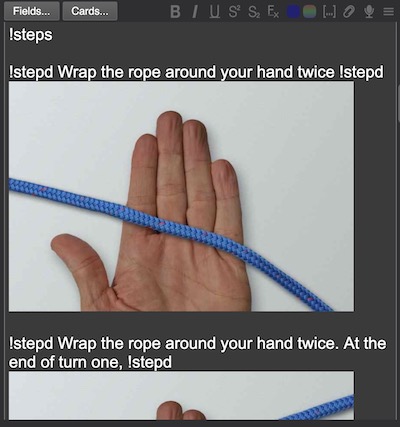
the following carousel will be generated:
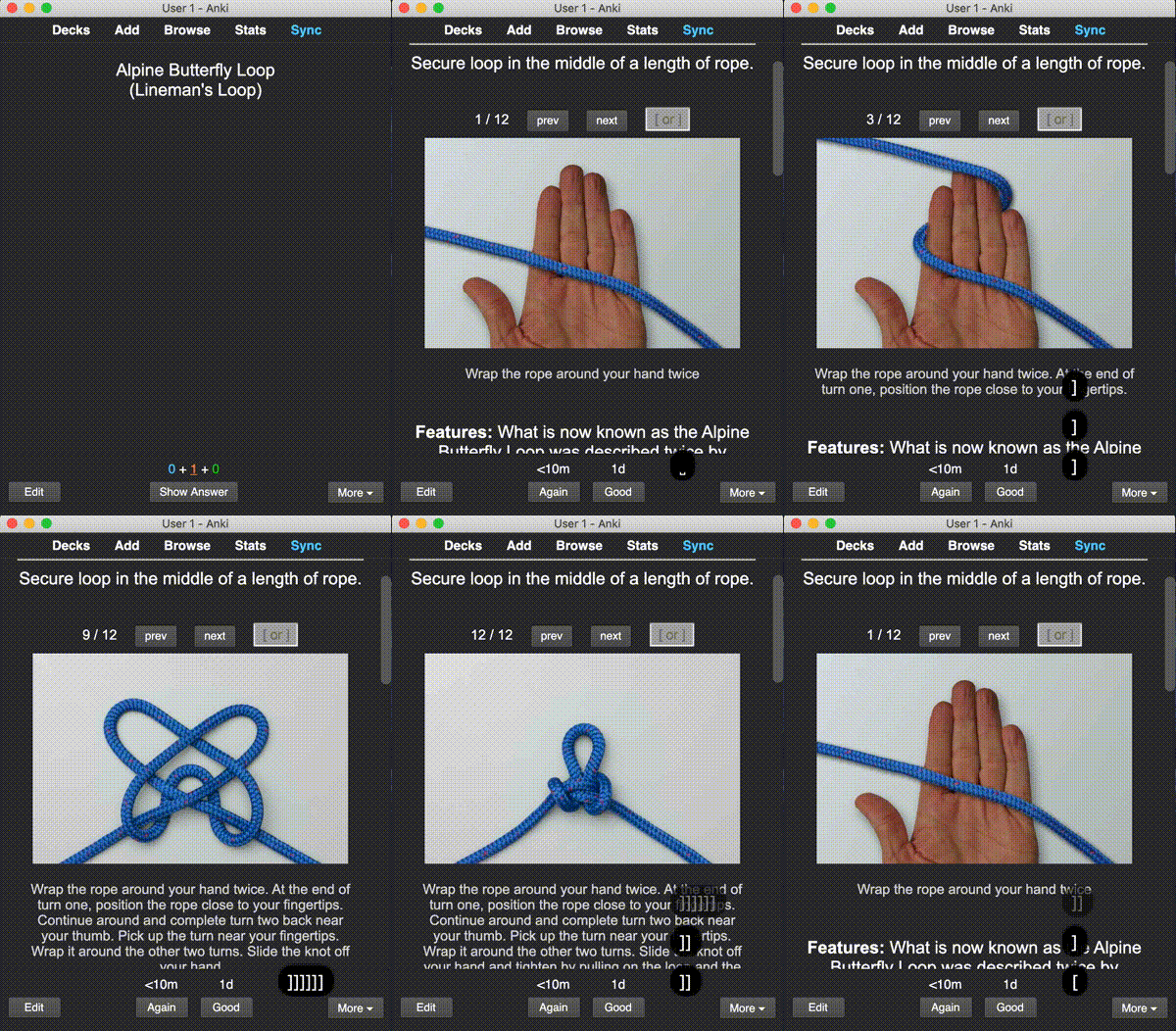
Make changes and then run python build.py test. This will work for Anki 2.1 on OSX. If you have a different OS you will need to modify ./build.py accordingly.
To generate knot-demo.gif, I used quicktime screen recording to create a .mov file and then converted it to gif via
ffmpeg -i knot-demo.mov -s 400x526 -r 10 knot-demo.gif
python build.py dist
the .addon file you need to upload will be placed in dist/. for the description you enter @ https://ankiweb.net/shared/upload paste this README and edit accordingly.