AnkiWeb
- Votes
- 0 (👍 0 · 👎 0)
- Updated
- 2026-10-06
- Anki versions
- 2.1.1~
- Languages
- Python, JSON
- Description language
- en
AnkiWeb addon 22962080
Converts LaTeX-style commands and ASCII shorthand into Unicode math symbols in the Anki editor, automatically while typing or manually via a button or shortcut.
Open on AnkiWeb Ask about alternatives
active
No GitHub repository linked.
| Min Anki | Max Anki | Updated |
|---|---|---|
| 2.1.1 | + | 2026-10-06 |
Loading…
Runs custom JavaScript or Python snippets and inserts configured symbols or strings into the Anki editor via keyboard shortcuts and popup menus, with a JSON configuration editor.
Converts dollar MathJax delimiters to \(...\) and \[...\] forms in the Editor, selected Browser notes in bulk, and the current review note, preserving formatting and skipping rendered equations.
Converts dollar-sign LaTeX from AI text into Anki's MathJax format automatically on paste, and bulk-converts existing collections via a Tools menu item.
Converts standard LaTeX delimiters into Anki's native MathJax format via an editor toolbar button or bulk conversion of all or selected notes.
Fixes stray // and $$ math delimiters in NotebookLM and CSV-imported flashcards, preserves existing LaTeX, supports undo, and can tag cards possibly missing images.
Renders LuaLaTeX and TikZ LaTeX inside notes into PNG or SVG images via configurable external commands, supporting standard math environments.
Type LaTeX-style commands such as \alpha or quick ASCII shorthand such as -> in the Anki editor and have them turn into Unicode symbols (α, →, and so on). No MathJax or LaTeX rendering is needed, so the symbols display everywhere, including on mobile.
\alpha followed by a space. It becomes α.That is all you need in the default Auto mode.
The add-on has two modes. Switch between them with the Auto button in the editor toolbar, or by editing the config.
Ctrl+Shift+M.The Auto button is highlighted when Auto mode is on, and not highlighted in Manual mode. Your choice is saved and remembered the next time you open Anki.
Ctrl+Shift+M: Converts all shortcuts in the current selection. If nothing is selected, it converts the whole field. Works in both modes, so you can also use it to clean up pasted text in Auto mode.\alpha and pressing Ctrl+Shift+M converts it without needing a trailing space.In Auto mode, a shortcut converts when you type one of these characters right after it:
, . ; : ! ? ( ) [ ] { } $For example, typing \pi gives π , and typing (\alpha) gives (α).
Backslash commands (those starting with \) must also stand alone. They are not converted if they directly follow a letter, number, underscore, or another backslash. This keeps \in from being converted in the middle of \int, and keeps longer commands working: \leq becomes ≤ and \le also becomes ≤.
Tip: if you type \le and want ≤, press space. If you meant \leq, just keep typing q and it will wait for the longer command.
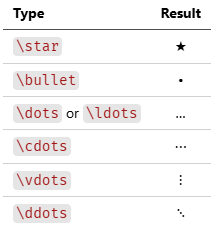
Where several shortcuts give the same symbol, any of them works.
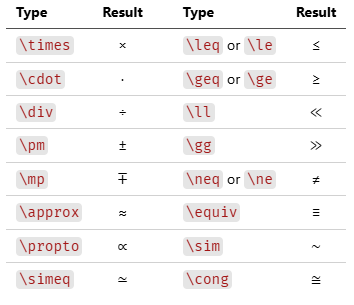
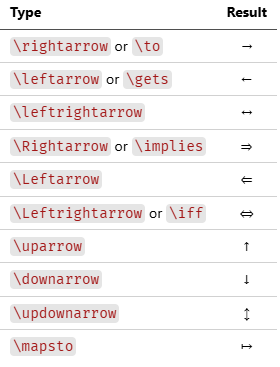
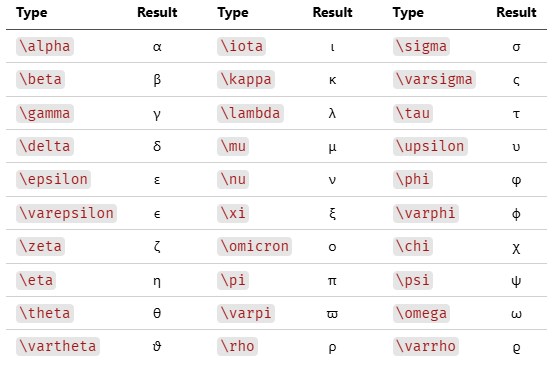
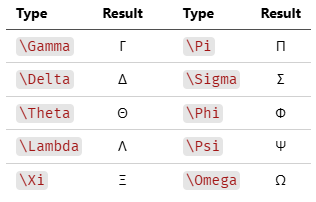
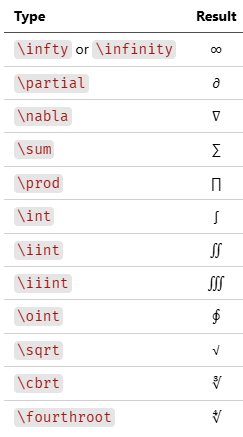
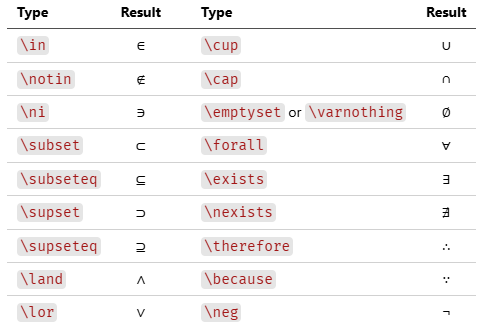
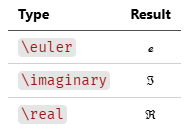
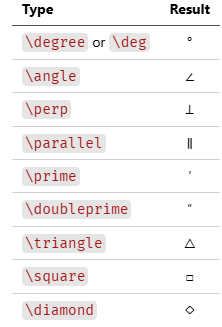
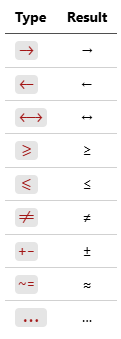
These do not need a backslash.
Open Tools → Add-ons, select this add-on, and click Config:
{
    "mode": "auto"
}
Other option is "manual". Whether shortcuts convert while typing (auto) or only when you use the Σ button / Ctrl+Shift+M (manual). Toggling the Auto button in the editor updates this value for you.
Ctrl+Shift+M (or the Σ button).\( ... \) or \[ ... \] math blocks, be careful with Auto mode, since commands such as \alpha are meant to stay as LaTeX there. Use Manual mode and select only the plain text you want converted.Ctrl+Z reverts them.Nothing converts in Auto mode
Make sure you type a space or punctuation mark after the shortcut. Check that the Auto button is highlighted.
A shortcut is not converting
Check the spelling against the tables above. Commands are case-sensitive (\Delta is Δ, \delta is δ).
The Auto highlight shows the wrong state
Open another note, which re-syncs the button, or check mode in the add-on