AnkiWeb
- Rating
- 160 (👍 149 · 👎 11)
- Updated
- 2026-06-13
- Anki versions
- 25.09.4~
- Description language
- en
AnkiWeb addon 939347702
Converts videos or audio with subtitles into Anki flashcards split by scenes or phrases, with mobile export, review hotkeys, and condensed audio.
Open on AnkiWeb GitHub Ask about alternatives
active
| Min Anki | Max Anki | Updated |
|---|---|---|
| 2.1.0 | 2.1.49 | 2022-11-10 |
| 2.1.50 | 2.1.65 | 2023-08-09 |
| 2.1.66 | 25.05 | 2025-02-07 |
| 25.06 | 25.09.3 | 2025-11-19 |
| 25.09.4 | + | 2026-06-13 |
Loading…
Generates Anki decks with audio and pictures from YouTube subtitles, supporting languages, subtitle optimization, card limits, and picture dimensions.
Enables watching foreign-language movies with Anki 2.1, supporting external ASS subtitles auto-converted to SRT and syncing via Anki Personal Server instead of AnkiWeb.
Plays selected MKV speech timestamps in mpv, auto-grades cards based on subtitle use, edits timestamps, and imports subtitle-derived cards into Anki.
Imports video files as decks by cutting via counts, time, or SRT subtitles into clips, with dual-language translation learning, adjustable cut options, and mpv segment playback.
Stores YouTube videos in a personal sentence database, adds matched audio, sentences, screenshots to Anki cards, and creates Subs2SRS decks from videos or playlists.
Turns subtitles or text documents into Anki language-learning flashcards, extracting video subtitles via FFmpeg, supporting Chinese-to-English dictionaries, frequencies, and updating existing notes.


https://github.com/user-attachments/assets/466d1aa7-c7d1-4ea2-a296-0835d3700962
Mpvacious is a user script for mpv that offers utilities for creating and modifying Anki flashcards from movies and TV shows. It allows you to select subtitle lines, create audio clips and images, and send them to Anki. The script supports secondary subtitles, configurable media formats, and customizable keyboard bindings. Mpvacious works best with Goldendict-ng or Rikaitan. Watch a 📽️ video demonstration.
✨ Ajatt-Tools is looking for new contributors!
You need to install some third-party programs before you install mpvacious.
<table> <tr> <th><a href="https://www.gnu.org/gnu/about-gnu.html">GNU/Linux</a></th> <th><a href="https://www.gnu.org/proprietary/malware-microsoft.en.html">Windows 10+</a></th> <th><a href="https://www.gnu.org/proprietary/malware-apple.en.html">macOS</a></th> <th>Comments</th> </tr> <tr> <td><a href="https://wiki.archlinux.org/index.php/Mpv">mpv</a></td> <td><a href="https://sourceforge.net/projects/mpv-player-windows/files">mpv</a></td> <td><a href="https://mpv.io/installation/">mpv</a></td> <td>mpvacious is a user-script for mpv. Get mpv v0.41.0 or newer.</td> </tr> <tr> <td><a href="https://wiki.archlinux.org/index.php/Anki">Anki</a></td> <td colspan="2" align="center"><a href="https://apps.ankiweb.net/">Anki</a></td> <td></td> </tr> <tr> <td colspan="3" align="center"><a href="https://ankiweb.net/shared/info/2055492159">AnkiConnect</a></td> <td>Install from AnkiWeb.</td> </tr> <tr> <td><a href="https://www.archlinux.org/packages/core/x86_64/curl/">curl</a></td> <td colspan="2" align="center"><a href="https://curl.haxx.se/">curl</a></td> <td>Installed by default on all platforms except Windows 7.</td> </tr> <tr> <td><a href="https://www.archlinux.org/packages/extra/x86_64/xclip/">xclip</a> or <a href="https://archlinux.org/packages/extra/x86_64/wl-clipboard">wl-copy</a></td> <td></td> <td>pbcopy</td> <td>To copy subtitle text to clipboard.</td> </tr> </table>
Install all dependencies at once (on Arch-based distros):
sudo pacman -Syu mpv curl xclip --needed
trizen -S anki
A guide on how to set up Anki can be found on our site.
If you're on a Windows or a Windows-like machine,
a mpv build by shinchiro is recommended.
macOS users are advised to use homebrew or manually add mpv to PATH.
Note that it is not recommended to use FlatPak or similar containers. If you still want to, read this.
Make sure that your build of mpv supports encoding of audio and images. This shell command can be used to test it.
$ mpv 'test_video.mkv' --loop-file=no --frames=1 -o='test_image.jpg'
If the command fails, find a compatible build on the mpv website
or instead install FFmpeg and enable FFmpeg support in mpvacious's config file.
Most problems with adding audio or images to Anki cards can be fixed by installing FFmpeg and enabling it settings.
There are multiple ways you can install mpvacious.
We recommend using GNU/Linux. Windows is not recommended, but we acknowledge that some people haven't switched to GNU/Linux yet.
mpvacious can be installed with the mpv-mpvacious package.
This method will install mpvacious to /etc/mpv.
Requires curl and unzip.
Run install.sh with this command:
/bin/bash -c "$(curl -fsSL https://raw.githubusercontent.com/Ajatt-Tools/mpvacious/HEAD/scripts/install.sh)"
On GNU/Linux, we try to detect what package manager variant of the config location you're using, with precedent being:
~/.var/app/io.mpv.Mpv     (flatpak)
~/snap/mpv
~/snap/mpv-wayland
~/.config/mpv
To install into any of these locations, make sure the ones above it don't exist.
Open Powershell.
Optional, needed to run a remote script the first time if not enabled already:
Set-ExecutionPolicy RemoteSigned -Scope CurrentUser
Run install.ps1 with this command:
irm https://raw.githubusercontent.com/Ajatt-Tools/mpvacious/HEAD/scripts/install.ps1 | iex
NOTE: If this command is run in an mpv installation directory with portable_config,
it'll install there instead of AppData.
Installing Mpvacious in development mode allows contributors to easily test their changes. With this setup, any changes made to the *.lua files will be applied immediately after restarting mpv.
Clone the repository, then create a symlink from the mpvacious directory to the mpv config directory.
Commands for GNU/Linux:
git clone 'https://github.com/Ajatt-Tools/mpvacious.git'
mkdir -p ~/.config/mpv/scripts/
cd mpvacious
bash scripts/symlink.sh
To update an existing installation, use git in the project folder.
git pull
Clone the repo directly into the mpv/scripts directory.
Commands for GNU/Linux:
mkdir -p ~/.config/mpv/scripts/
git clone 'https://github.com/Ajatt-Tools/mpvacious.git' ~/.config/mpv/scripts/mpvacious
To update an existing installation, use git.
cd ~/.config/mpv/scripts/mpvacious && git pull
This way is not recommended because it's easy to make a mistake during the process and end up with a broken installation.
mpvacious is a user-script for mpv,
so it has to be installed in the directory mpv reads its user-scripts from.
| OS | Location |
|---|---|
| GNU/Linux or macos | ~/.config/mpv/scripts/ |
| Windows | C:/Users/Username/AppData/Roaming/mpv/scripts/ |
Download the latest release or the master branch for a development version, and extract the "mpvacious" folder to your mpv scripts directory.
<details>
<summary>Expected directory tree</summary>
~/.config/mpv/scripts
|-- other script 1
|-- other script 2
|-- mpvacious
|   |-- main.lua
|   |-- helpers.lua
|   `-- other files
`-- other script 3
</details>
<details>
<summary>A note for mpv v0.32 and older</summary>
Older versions of mpv don't know how to handle user-scripts in subdirectories.
You need to tell mpv where to look for mpvacious.
Open or create ~/.config/mpv/scripts/modules.lua and add these lines:
local mpv_scripts_dir_path = os.getenv("HOME") ..  "/.config/mpv/scripts/"
package.path = package.path .. ';' .. os.getenv("HOME") .. '/.config/mpv/scripts/mpvacious/?.lua'
function load(relative_path) dofile(mpv_scripts_dir_path .. relative_path) end
load("mpvacious/main.lua")
</details>
<details>
<summary>A note for Celluloid</summary>
In Celluloid
user scripts are installed in /.config/celluloid/scripts/.
When following the instructions above, replace .config/mpv with .config/celluloid
and optionally mpvacious with the name of the folder mpvacious is cloned into.
</details>
The config file should be created by the user, if needed.
| OS | Config location |
|---|---|
| GNU/Linux | ~/.config/mpv/script-opts/subs2srs.conf |
| Windows | C:/Users/Username/AppData/Roaming/mpv/script-opts/subs2srs.conf |
| Windows (portable) | mpv.exe folder/portable_config/script-opts/subs2srs.conf |
If a parameter is not specified
in the config file, the default value will be used.
mpv doesn't tolerate spaces before and after =.
<p align="center"> <a href="mpvacious/config/default_config.conf">Example configuration file</a> </p>
If the first field is empty, it will be set contain the string [empty].
Otherwise, Anki won't allow mpvacious to add new notes.
This won't happen if the sentence field is first in the note type settings.
Tip: Try our official note type if you don't want to configure note fields yourself. Alternatively, we have a collection of user-created note types, which you can browse here.
If you are having problems playing media files on older mobile devices,
set audio_format to mp3 and/or snapshot_format to jpg.
Otherwise, I recommend sticking with opus for audio,
and avif or webp for images,
as they greatly reduce the size of the generated files.
If you still use AnkiMobile (the proprietary Anki app),
set opus_container to m4a or webm. I'll allow iOS to play Opus files, while still maintaining
compatibility with non-Apple devices. For ancient iOS devices, set opus_container to
caf. CAF plays only on Anki Desktop,
AnkiWeb in Safari and AnkiMobile, and is really not recommended. (Please note that
Lockdown Mode completely disables Opus and AVIF support,
though you may try to add an exception for AnkiMobile.)
If no matter what mpvacious fails to create audio clips and/or snapshots,
change use_ffmpeg to yes.
By using ffmpeg instead of the encoder built in mpv you can work around most encoder issues.
You need to have ffmpeg installed for this to work.
The user may change some global key bindings, though this step is not necessary. See Usage for the explanation of what they do.
| OS | Config location |
|---|---|
| GNU/Linux | ~/.config/mpv/input.conf |
| Windows | C:/Users/Username/AppData/Roaming/mpv/input.conf |
Default bindings:
a            script-binding mpvacious-menu-open

Ctrl+g       script-binding mpvacious-animated-snapshot-toggle

Ctrl+n       script-binding mpvacious-export-note

Ctrl+b       script-binding mpvacious-update-selected-note
Ctrl+B       script-binding mpvacious-overwrite-selected-note

Ctrl+m       script-binding mpvacious-update-last-note
Ctrl+M       script-binding mpvacious-overwrite-last-note

g            script-binding mpvacious-quick-card-menu-open
Alt+g        script-binding mpvacious-quick-card-sel-menu-open

Ctrl+c       script-binding mpvacious-copy-primary-sub-to-clipboard
Ctrl+C       script-binding mpvacious-copy-secondary-sub-to-clipboard
Ctrl+t       script-binding mpvacious-autocopy-toggle

H            script-binding mpvacious-sub-seek-back
L            script-binding mpvacious-sub-seek-forward

Alt+h        script-binding mpvacious-sub-seek-back-pause
Alt+l        script-binding mpvacious-sub-seek-forward-pause

Ctrl+h       script-binding mpvacious-sub-rewind
Ctrl+H       script-binding mpvacious-sub-replay
Ctrl+L       script-binding mpvacious-sub-play-up-to-next

Ctrl+v       script-binding mpvacious-secondary-sid-toggle
Ctrl+k       script-binding mpvacious-secondary-sid-prev
Ctrl+j       script-binding mpvacious-secondary-sid-next
Note: A capital letter means that you need to press Shift in order to activate the corresponding binding.
For example, <kbd>Ctrl+M</kbd> actually means <kbd>Ctrl+Shift+m</kbd>.
mpv accepts both variants in input.conf.
Menu:
advanced menu.Enable\Disable animation:
Make a card:
Quick card creation:
Update the selected cards:
Update the last card:
Clipboard:
Seeking:
Secondary subtitles:
Advanced menu has the following options:
<kbd>i</kbd> - Cycle between display modes.
<kbd>v</kbd> - Open subtitle selection menu. Upon exit, this menu exports selected subtitles into Advanced menu.
<kbd>f</kbd> - Increment number of cards to update. Only affects note updating, including quick card creation. The number of cards to update is reset to 1 upon updating a note.
<kbd>shift+f</kbd> - Decrement number of cards to update.
<kbd>c</kbd> - Interactive subtitle selection. The range of the currently displayed subtitle line is selected. The selection then grows both ways based on the following displayed lines. It does nothing if there are no subs on screen.
<kbd>shift+s</kbd> - Set the start time to the current sub. The selection then grows forward based on the following displayed lines. The default selection spans across the range of the currently displayed subtitle line.
<kbd>shift+e</kbd> - Set the end time to the current sub. The selection then grows backward based on the following displayed lines. The default selection spans across the range of the currently displayed subtitle line.
Then seek with <kbd>Shift+h</kbd> and <kbd>Shift+l</kbd> to the previous/next line that you want to add. Press <kbd>n</kbd> to make the card.
<kbd>r</kbd> - Forget all previously saved timings and associated dialogs.
<kbd>z</kbd> and <kbd>Shift+z</kbd> - Adjust subtitle delay.
If above fails, you have to manually set timings.
Then, as earlier, press <kbd>n</kbd> to make the card.
Alternatively:
Tip: change playback speed by pressing <kbd>[</kbd> and <kbd>]</kbd> to precisely mark start and end of the phrase.
The new note timer feature allows mpvacious to automatically detect and update new Anki notes without manual intervention. When enabled, mpvacious will periodically check for new notes and automatically add media (audio and images) to them if they match your configured note type.
To enable this feature, set enable_new_note_timer=yes,
and assign model_name and deck_name
in your config file.
You can adjust how often mpvacious checks for new notes with the new_note_timer_interval_seconds setting.
When this feature is enabled, you no longer need to manually press "m" to update notes that were created externally (e.g., with GoldenDict or Rikaitan). The process happens automatically in the background.
If subs are badly timed, first, you can shift timings using key bindings provided by mpv (usually <kbd>z</kbd> and <kbd>Shift+z</kbd>).
Alternatively, try to re-time subtitles. Read Retiming subtitles for details.
With mpvacious you can make cards like this in just a few seconds.
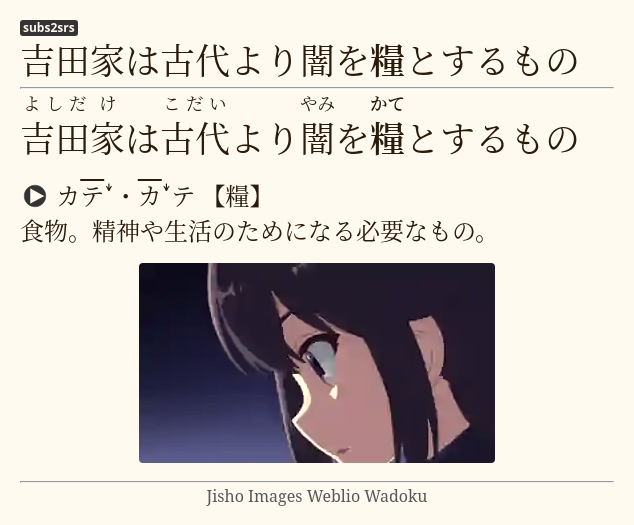
It is possible to make a card with just audio, and a picture
when subtitles for the show you are watching aren't available, for example.
mpv by default allows you to do a 1 second exact seek by pressing <kbd>Shift+LEFT</kbd> and <kbd>Shift+RIGHT</kbd>.
Open the mpvacious menu by pressing <kbd>a</kbd>, seek to the position you need, and set the timings.
Then press <kbd>g</kbd> to invoke the Add Cards dialog.
Here's a video demonstration.
If the show is hard-subbed, you can use transformers-ocr to recognize and add text to the card.
If you want to add a translation to your cards, and you have the subtitles in that language,
you can add them as secondary subtitles if you run mpv with --secondary-sid=<sid> parameter,
sid being the track identifier for the subtitle.
You also need to specify secondary_field in the config file
if it is different from the default.
If you want to load secondary subtitles automatically, don't modify the run parameters
and instead set the desired languages in the config file (secondary_sub_lang option).
Secondary subtitles will be visible when hovering over the top part of the mpv window.
https://user-images.githubusercontent.com/69171671/188492261-909ba3e8-b82c-493f-88cf-0ec953dfcfe1.mp4
By pressing <kbd>Ctrl</kbd>+<kbd>v</kbd> you can control secondary sid visibility without using the mouse.
If you don't like the default Rikaitan Search tool, try:
You can use any HTML page as long as it has <body></body> in it.
I recommend adding these lines to your input.conf for smoother experience.
# vim-like seeking
l seek 5
h seek -5
j seek -60
k seek 60

# Cycle between subtitle files
K cycle sub
J cycle sub down

# Add/subtract 50 ms delay from subs
Z add sub-delay +0.05
z add sub-delay -0.05

# Adjust timing to previous/next subtitle
X sub-step 1
x sub-step -1
For example, check out my input.conf file.
Mpvacious supports config profiles.
To make use of them, create a new config file called subs2srs_profiles.conf
in the same folder as your subs2srs.conf.
Inside the file, define available profile names (without .conf) and the name of the active profile:
profiles=subs2srs,english,german
active=subs2srs
In the example above, I have three profiles. The first one is the default, the second one is for learning English, the third one is for learning German.
Then in the same folder create config files for each of the defined profiles.
For example, below is the contents of my english.conf file:
deck_name=English sentence mining
model_name=General
sentence_field=Question
audio_field=Audio
image_field=Extra
You don't have to redefine all settings in the new profile. Specify only the ones you want to be different from the default.
To cycle profiles, open the advanced menu by pressing <kbd>a</kbd> and then press <kbd>p</kbd>. At any time you can see what profile is active in the menu's status bar.
Since Ajatt-Tools is a distributed effort, we highly welcome new contributors!
Install the project in development mode to easily test and commit your changes.
Try these libre code editors with lua support:
Make sure to use an automatic code formatter. Also see: Running tests.
The fastest way to run tests is with Lua or luajit directly (no mpv or media file required):
lua tests/run.lua
luajit tests/run.lua
Alternatively, tests can be run inside mpv (requires a media file to trigger script loading):
MPVACIOUS_TEST=TRUE mpv 'path/to/some/file.mkv'
The results will be printed to the console.
While the default subtitle processing in mpvacious is sufficient for most users, you can define custom logic to handle specific needs, such as filtering bilingual subtitles.
To use this feature, create the following directory and an **empty main.lua** file (required to prevent mpv from reporting a plugin error):
| OS | Plugin Location |
|---|---|
| GNU/Linux | ~/.config/mpv/scripts/mpvacious_custom_subtitle_filter/ |
| Windows | C:/Users/Username/AppData/Roaming/mpv/scripts/mpvacious_custom_subtitle_filter/ |
| Windows (portable) | mpv.exe folder/portable_config/scripts/mpvacious_custom_subtitle_filter/ |
Structure:
mpvacious_custom_subtitle_filter/
├── main.lua                   # Empty file to satisfy mpv
└── custom_subtitle_filter.lua # Your custom logic
mpvacious will automatically load custom_subtitle_filter.lua and look for these exported functions:
preprocess(text): The primary function for filtering or reformatting raw subtitles.trim(text): Overrides the internal trimmer. Note that internal trimming must be enabled via clipboard_trim_enabled=yes in subs2srs.conf.init(config): Called on load to setup keybindings or initialize custom logic. It receives a configuration table containing:
get_mode: A getter function that returns the current custom_subtitle_filter_mode, ensuring your script stay in sync with profile switches.You can control the filter's behavior via subs2srs.conf and its profiles:
custom_subtitle_filter_mode: A string accessible via config.get_mode() in init. Use this to dynamically toggle or change filtering logic when switching profiles—for example, set it to japanese in your JP profile and none in others.An example script is available within the repository.
This script is designed to extract Japanese lines from bilingual subtitles. While originally tailored for Japanese/Chinese pairs, it works for any language combined with Japanese because it identifies lines based on the presence of Kana.
To use it, copy the example's logic into your custom_subtitle_filter.lua and modify it to suit your workflow.
If you want to modify this script or make an entirely new one from scratch, these links may help.
