AnkiWeb
- Votes
- 1 (👍 1 · 👎 0)
- Updated
- 2026-10-31
- Anki versions
- 26.09~
- Languages
- Python, CSS, JSON
- Description language
- zh
AnkiWeb addon 962326418
Fills Anki note fields using AI services or local MDX and online dictionaries, per-field, with batch processing, scheduled generation, custom parsers and configuration backup.
Open on AnkiWeb GitHub Ask about alternatives
active
| Min Anki | Max Anki | Updated |
|---|---|---|
| 23.10 | 26.09+ | 2026-10-31 |
Loading…
Queries words across local mdx/Stardict and web dictionaries, then automatically fills mapped Anki note fields to create language-learning cards from the Add dialog or Browser.
Queries definitions, examples and other fields from local mdx/stardict or online dictionaries and fills them into Anki notes, using multi-threaded lookups for faster card creation.
Upgrades Fast Word Query 2 to Anki 24.04, letting users query dictionary definitions and fill note fields from the Add note window, Browser, and context menu.
Automatically fills French flashcard fields—translations, grammar, gender, plurals, pronunciation, and Google TTS audio—using an offline lexical database and two custom note types.
Automatically fills Japanese vocabulary and sentence flashcards from a typed word or sentence, adding translations, kana readings, kanji readings, transitivity, part-of-speech, offline dictionary lookups, and Google TTS audio.
Adds Tatoeba example sentences, translations, and native-speaker audio to Japanese flashcards, either one card at a time or through fast batch deck processing.
GitHub: https://github.com/jrz0213/FastCardMaker
Based on FastWordQuery (FastWQ), with the original author credits and license retained.
FastCard Maker fills Anki note fields using AI, local MDX dictionaries or online dictionaries. Use them separately, or choose different sources for different fields of the same note. AI can help with concepts, questions and study material as well as vocabulary.
Start with a few notes before running a larger batch. Screenshots use example fields, dictionaries and models; your names may differ.
Open FastCM → Options → AI settings:
https://api.deepseek.com/responses. Preset URLs are editable; use a model supported by your service.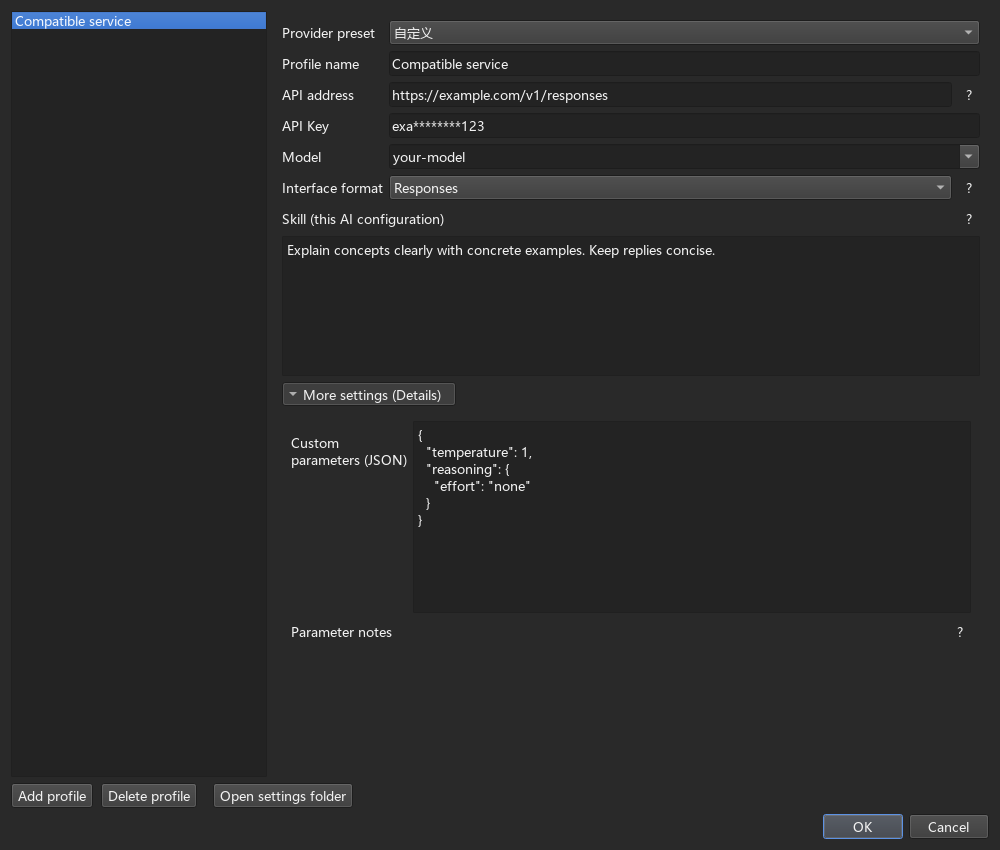
Use More settings → Custom parameters (JSON) for reasoning settings. DeepSeek and Qwen both default to Responses, with reasoning.effort set to none in new profiles to disable thinking. Model support for disabling thinking and available levels varies.
These connections also serve dictionary script analysis. Consider a separate “Dictionary parsing” profile with higher reasoning effort for complex scripts. The table contains reasoning settings only; replace the custom parameters with a supported example. Provider names link to official documentation.
Service and APIHigher-reasoning JSON exampleOpenAI (Responses){"reasoning":{"effort":"high"}}DeepSeek (Responses){"reasoning":{"effort":"high"}}Qwen / Model Studio (Responses){"reasoning":{"effort":"high"}}Claude (Messages, adaptive-thinking models){"thinking":{"type":"adaptive"},"output_config":{"effort":"high"},"max_tokens":16000}Gemini (Interactions){"generation_config":{"thinking_level":"high"}}Use examples supported by your model; high does not imply the same reasoning budget across services. The Claude example retains the required max_tokens output limit, which can be adjusted. Older models may need different thinking settings. Higher effort can increase waiting time and token use; click ? for parameter help.
Region or workspace settings may require a different URL, especially with Model Studio; use the endpoint from your own console.
Prepare your notes in Anki first. For a concept example, create Topic, Question, Answer and Comparison fields. Enter “Statistics” in Topic and “How do correlation and causation differ?” in Question, leaving the other two for AI.
In FastCM → Options, select the corresponding note type:
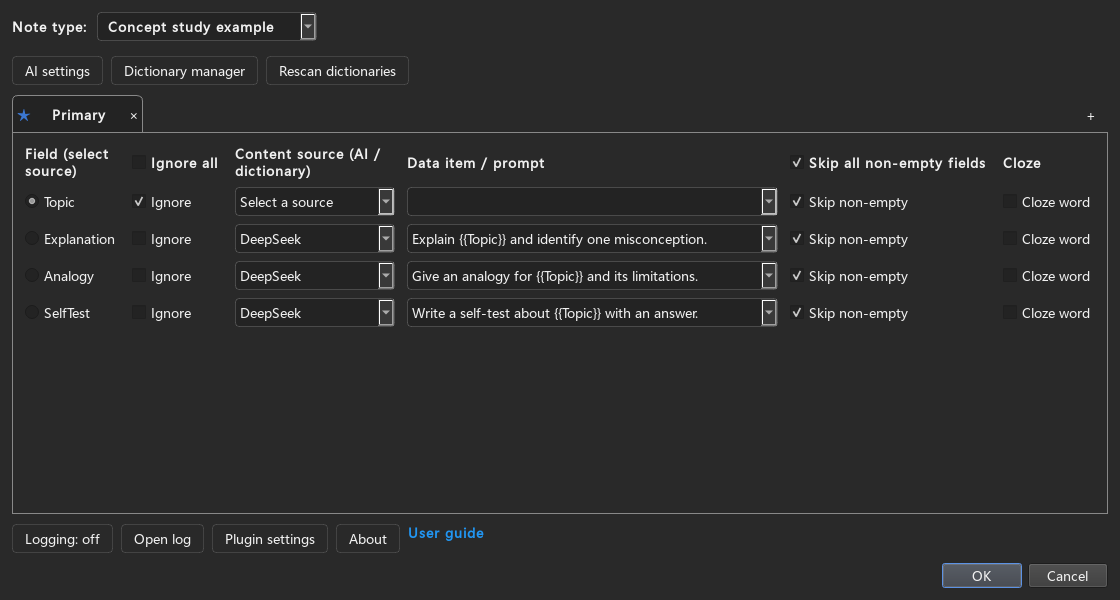
Prompts can reference several fields:
Using {{Topic}}, answer this question: {{Question}}
Start with a direct answer, then give one example. Keep it under 150 words.
Placeholders are replaced with values from the current note. Field names must match exactly, and referenced fields must not also be AI output fields. Put field references in the field’s prompt rather than Skill.
For Comparison, try Compare definitions, examples and common misconceptions about {{Question}} in {{Topic}}, using a Markdown table. Switching the field’s AI connection preserves its prompt.
Vocabulary works the same way: use a word as the source, then request meanings, examples or synonyms in other fields. The add-on fills existing notes. If results do not appear on cards, add the output fields to the relevant Anki card template under Cards….
Select a few notes in the Anki Browser and choose FastCM → Query Selected. Inspect the results before processing more notes.
For a larger batch, open FastCM → Query whole note types, check the required types, choose a saved configuration for each, then click Query.
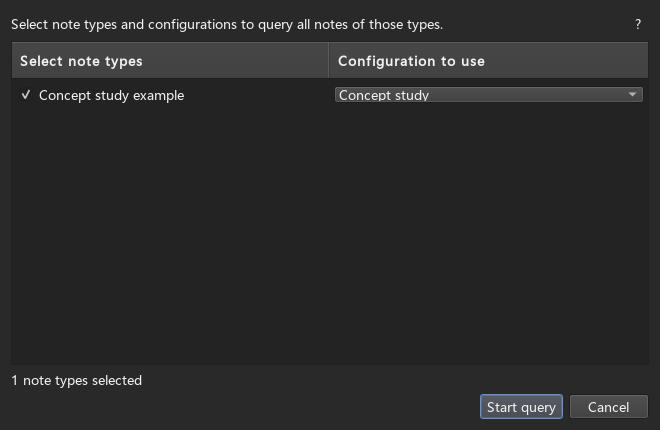
This processes all notes of the checked types, regardless of the current deck or Browser selection. Opening from the Browser preselects types represented by selected notes; opening from the main window selects none.
Skip existing values controls whether a populated field is queried again. To regenerate one field, clear that option and ignore other targets. Save changes before running the query.
Open Plugin settings → AI settings:
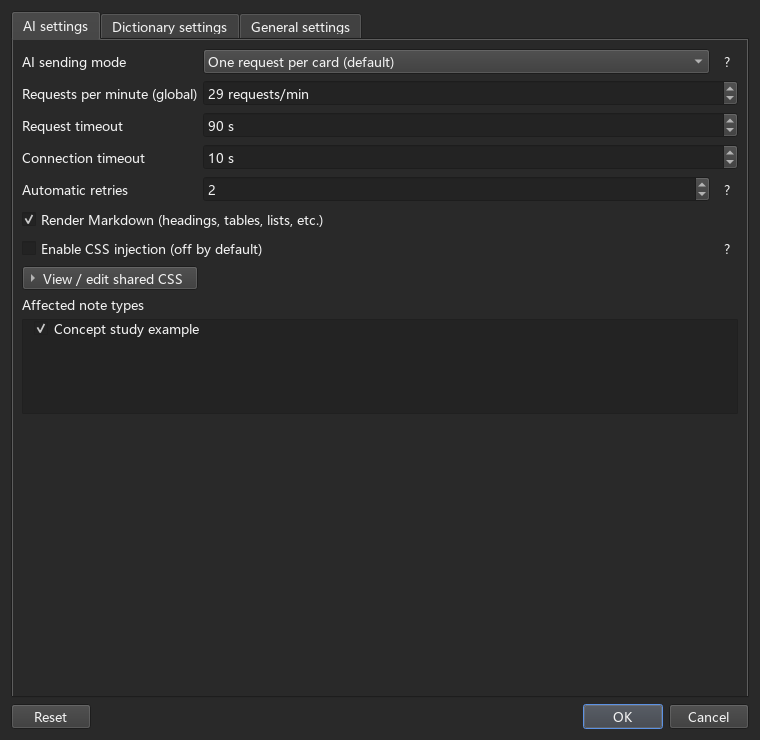
The shared request rate, timeouts and retries are on this page too. Dictionary threads, matching and cloze format are under Dictionary settings; language, scheduling and backups are under General settings. Click ? beside a group for details.
Click Run in background to continue using Anki. Reopen FastCM → Task progress to inspect status and results; Finish task hides the completed progress strip. Results are written about every 30 seconds, with remaining results written when the task finishes.
Closing Anki interrupts the task. If a recovery prompt appears on the next launch, restore replies already received and cached. Unfinished requests are not recovered this way.
Each note type initially uses its first configuration as the starred configuration. To change it, click another configuration’s star in Options and save.
Under Plugin settings → General settings, enable scheduled generation, set the interval, select note types and save. Only empty fields of notes created after enabling the feature are processed. If a batch is still running, the next tick is skipped.

When eligible notes are found, a ten-second countdown offers Run now or Skip this run. Closing the prompt also skips; leaving it alone starts the batch. Keep Anki open and check Task progress for results.
Click OK to save changes. Closing an edited settings window asks whether to save; an unchanged window closes immediately.
Under Plugin settings → General settings → Configuration backup, choose:
_fastcm_backup.zip in the media folder, which syncs with Anki media.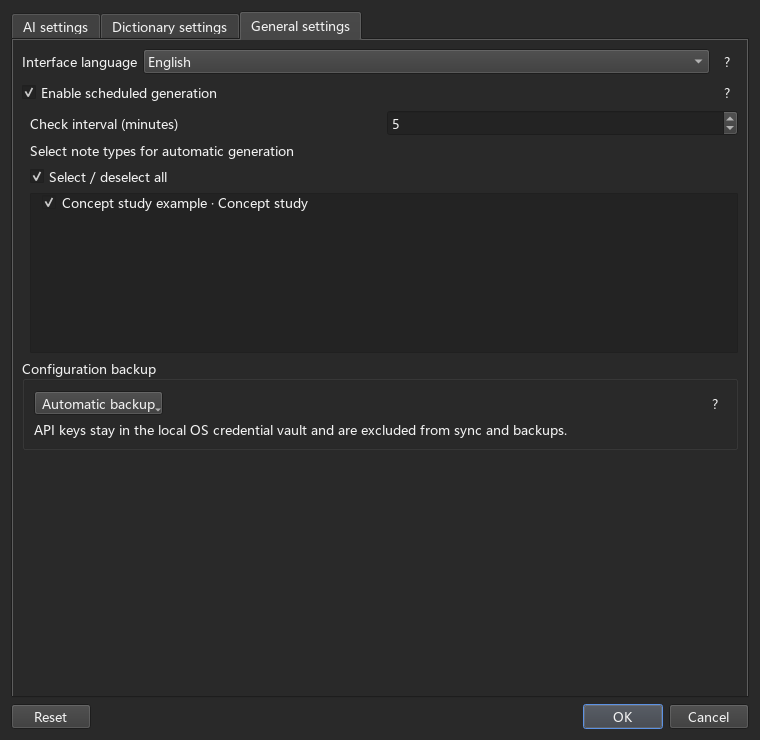
The ZIP contains only AI connection settings and current Python dictionary scripts. Ordinary preferences, field mappings and script enable flags are saved in the media folder’s _fastcmcfg.json, including in manual backup mode. Dictionary paths stay local.
API keys are stored locally and managed by the operating system. They are not uploaded or synced with your configuration.
In automatic mode, differing settings offer Overwrite (local to backup), Sync (backup to local) or Cancel (keep both for now). Differing scripts use per-file choices, described below.
Backups exclude dictionary files and paths, dictionary JavaScript, conversations and recycled scripts. Add dictionary folders separately on another computer. On first use, current FastCard Maker settings take precedence, with legacy FastWQ settings used when absent; subsequent saves use FastCard Maker filenames.
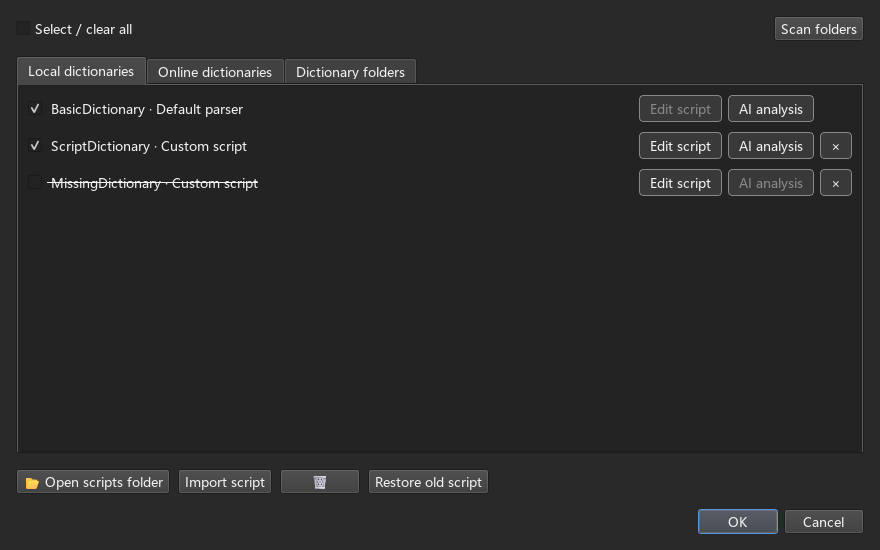
Use default parsing for the complete entry, or a custom parser for separate meanings, examples or pronunciation. Add existing .py parsers through Import script; placing Python files beside dictionaries does not import them.
New scripts prefer the MDX filename, with an optional internal title, rather than a fixed machine path. If a dictionary moves, add its new folder and rescan. Legacy fixed paths and existing audio handling remain supported; filename matching takes precedence when both bindings exist. Multiple matches require you to adjust imported folders rather than silently choosing a file.
Missing dictionaries or scripts keep their original name with a strikethrough in the manager and Options, and queries skip them. Each manager row has a Delete button that requires confirmation: missing entries are removed and existing scripts move to the local recycle bin. Options has no delete button. Reselect invalid dictionary data items when needed.
If images or audio fail to import, check MDD/resources first, then try fuzzy media matching under Dictionary settings and inspect the result. Dictionary JavaScript may be changing media paths; try AI parsing below. Missing source media cannot be recreated by a parser.
Click AI parse beside the dictionary. Use your separate Dictionary parsing profile if available, with reasoning settings supported by its model.
concept), verb (maintain) and adjective (relevant), with alternatives when missing. You can enter three different words found in the dictionary instead.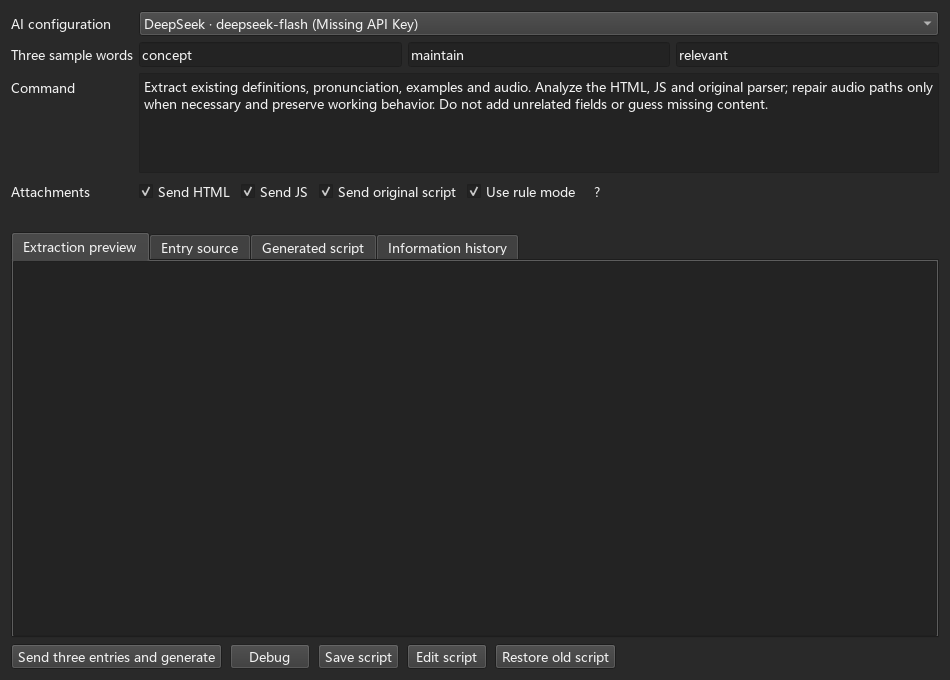
Return JSON rules is checked by default: AI describes extraction rules and the add-on generates Python, suitable for standard extraction. Uncheck it for complete Python that can handle complex paths or restructure nested content. Both modes save .py files, with matching instructions used for generation and follow-up messages.
Direct Python output receives syntax and structure checks during generation. Clicking Debug or loading a saved script executes code; passing checks does not guarantee correct results.
Debug checks three samples and adds results and detailed errors to Information history. Enter a follow-up below and click Send message to ask for changes.
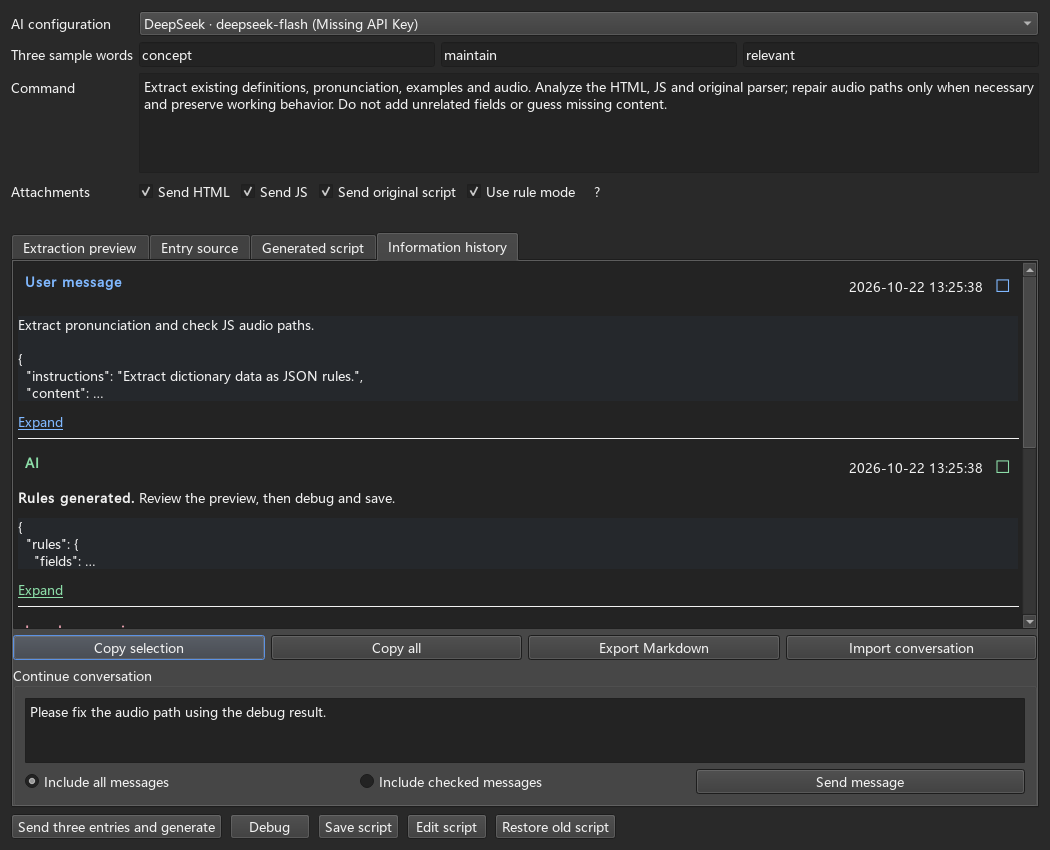
History and source code increase token use. For long conversations, include fewer checked messages or close the window and start again. Review each AI revision and Save script to apply it.
In automatic mode, differing local and backup scripts appear in a file list. Choose Local version or Backup version for each; Backup is selected by default. Header checkboxes select an entire side before individual adjustments.
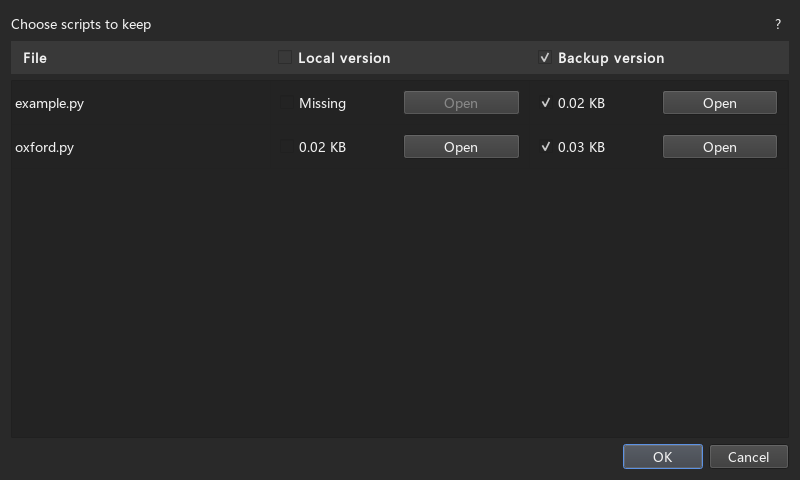
Each side shows file size. Open displays read-only source without executing it. Choosing a missing side deletes that file, with confirmation. Close the window to leave choices unapplied.
To undo a script change, click Restore old script, select a version by filename and deletion time, then Restore or Open to inspect it first. Recycled scripts stay on this device, are excluded from backups and sync, and are cleaned up after seven days. A restored version participates in backup only after becoming the current script.
本插件基于 FastWordQuery(FastWQ) 开发,保留原项目的作者署名与许可证。
FastCard Maker 可以用 AI 为笔记补充解释、例子和对比表格,也可以从本地 MDX 词典或网络词典中提取内容。两种方式可以分别使用,也可以为同一条笔记的不同字段选择不同来源。
以下先介绍 AI 制卡,再介绍词典查询。建议先选几条笔记试用,确认结果符合要求后再批量处理。截图中的字段名、词典和模型仅作示例。
打开 FastCM → 选项 → AI 设置:
https://api.deepseek.com/responses;预设填入的地址也可以修改。请使用所选服务支持的模型名称。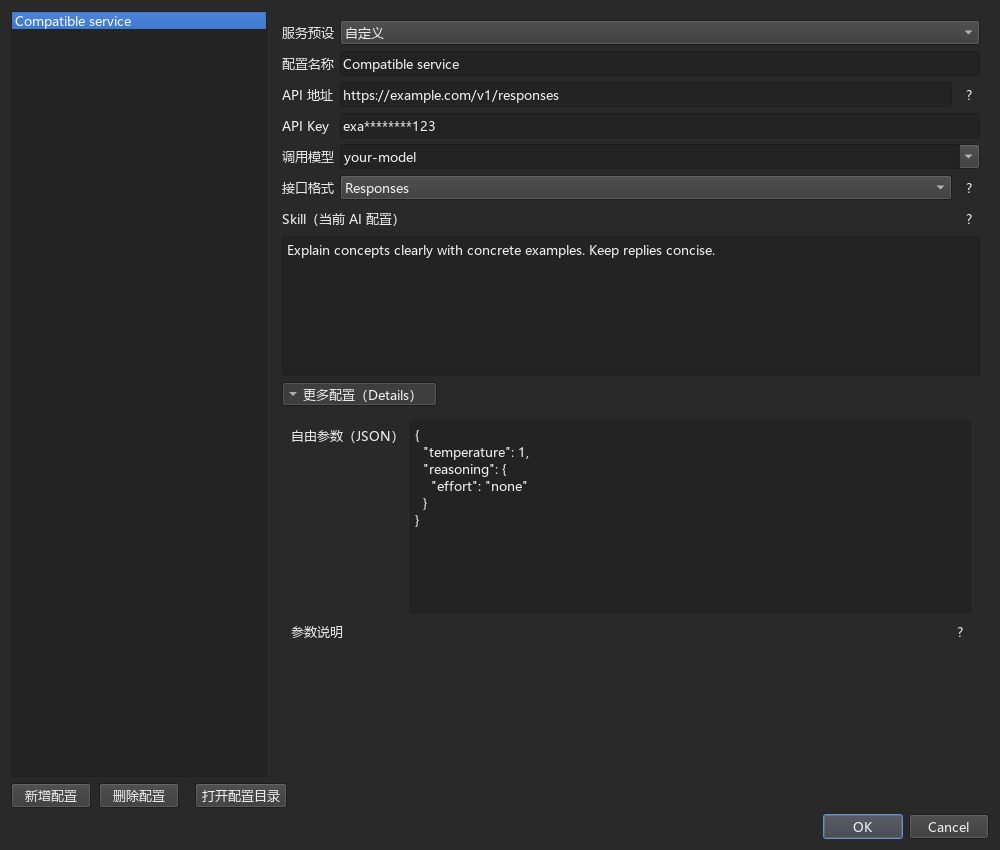
打开 更多配置 → 自由参数(JSON) 可以设置思考强度。DeepSeek 和 Qwen 都默认使用 Responses,新建配置时预填 reasoning.effort 为 none,表示关闭思考。是否允许关闭、支持哪些档位,以具体模型为准。
这里添加的 AI 配置也可以用于词典脚本解析。建议另建一份名为“词典解析”的配置;需要分析较复杂的脚本时,可以尝试较高的思考强度。下表只列出思考相关设置,可用对应示例替换自由参数;点击服务名称可查看官方文档。
服务及接口较高思考强度的 JSON 示例OpenAI(Responses){"reasoning":{"effort":"high"}}DeepSeek(Responses){"reasoning":{"effort":"high"}}Qwen/百炼(Responses){"reasoning":{"effort":"high"}}Claude(Messages,支持自适应思考的模型){"thinking":{"type":"adaptive"},"output_config":{"effort":"high"},"max_tokens":16000}Gemini(Interactions){"generation_config":{"thinking_level":"high"}}这些写法需要所选模型支持,high 在不同服务中也不代表相同的思考预算。Claude 示例保留了接口要求的 max_tokens 输出上限,可按需要调整;旧模型的思考设置请查阅官方文档。较高思考强度通常会增加等待时间和 Token 用量,参数报错时可点击 ? 查看说明。
Qwen 等服务可能因地域或业务空间不同而使用不同地址,请以自己的控制台为准。
先在 Anki 中准备好笔记。以学习概念为例,可以建立“主题”“问题”“回答”“对比”四个字段:在前两个字段中填写“统计学”和“相关与因果有什么区别?”,后两个留给 AI 填写。
回到 FastCM → 选项,选择这份笔记所属的 笔记类型:
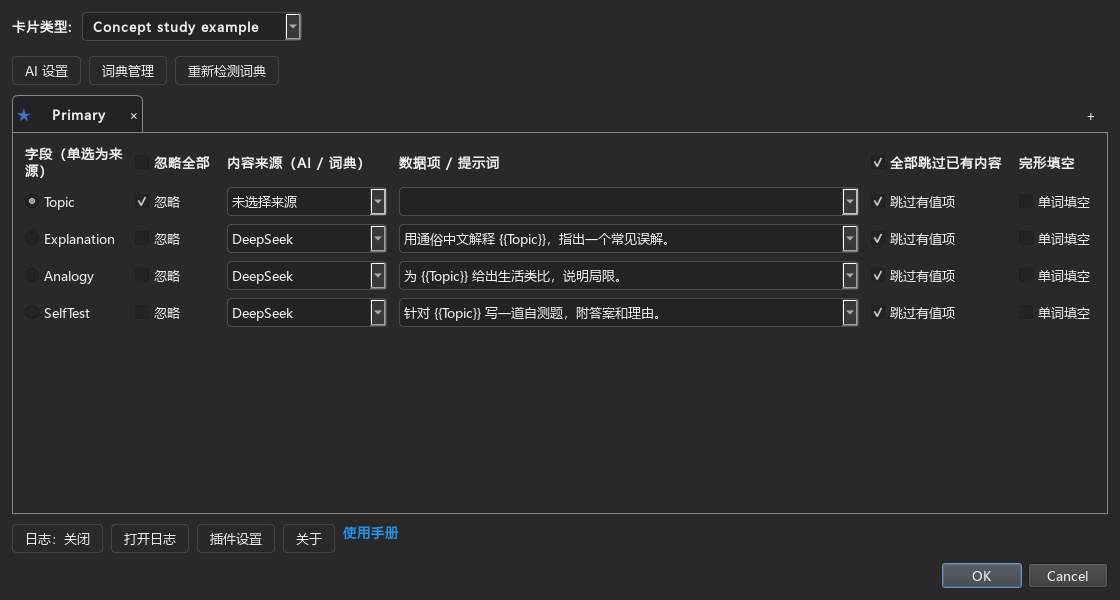
提示词可以引用多个字段。例如,在“回答”这一行填写:
结合{{主题}},回答这个问题:{{问题}}
先直接回答,再举一个例子,不超过200字。
插件会把 {{主题}} 和 {{问题}} 替换成当前笔记中的内容。字段名必须与笔记中的名称完全一致;被引用的字段不要同时设为 AI 输出字段。字段引用写在这里的提示词中,不写在 Skill 中。
“对比”字段可以填写:围绕{{主题}}中的{{问题}},用 Markdown 表格比较定义、例子和常见误区。 切换这一行使用的 AI 不会清除原有提示词。
学习单词时操作相同:来源字段填写单词,再让其他字段分别生成释义、例句或近义词。插件将结果写入已有笔记;如果卡片上看不到新增内容,需要在 Anki 的 卡片… 中把相应字段加入模板。
在 Anki 浏览器中选中几条笔记,点击 FastCM → 查询选中项,检查结果是否正确。
确认后,可以使用 FastCM → 全类型查询:勾选要处理的笔记类型,为每个类型选择已保存的配置,再点击 查询。
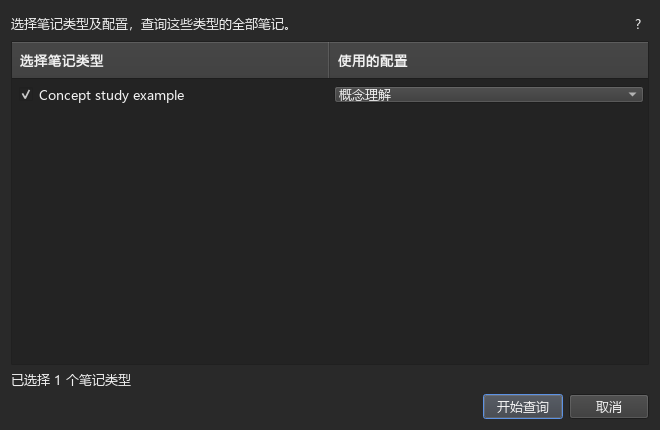
全类型查询会处理这些类型的全部笔记,不受当前牌组或浏览器选中范围限制。从浏览器打开时,会默认勾选已选笔记所属的类型;从首页打开时,默认不勾选任何类型。
如果某个字段已有内容,是否重新生成取决于该行的 跳过有值项。想重做这个字段时,取消该项;其他不需要处理的字段勾选 忽略。修改配置后先点击 确定 保存,再开始查询。
打开 插件设置 → AI 设置,可以调整以下选项:
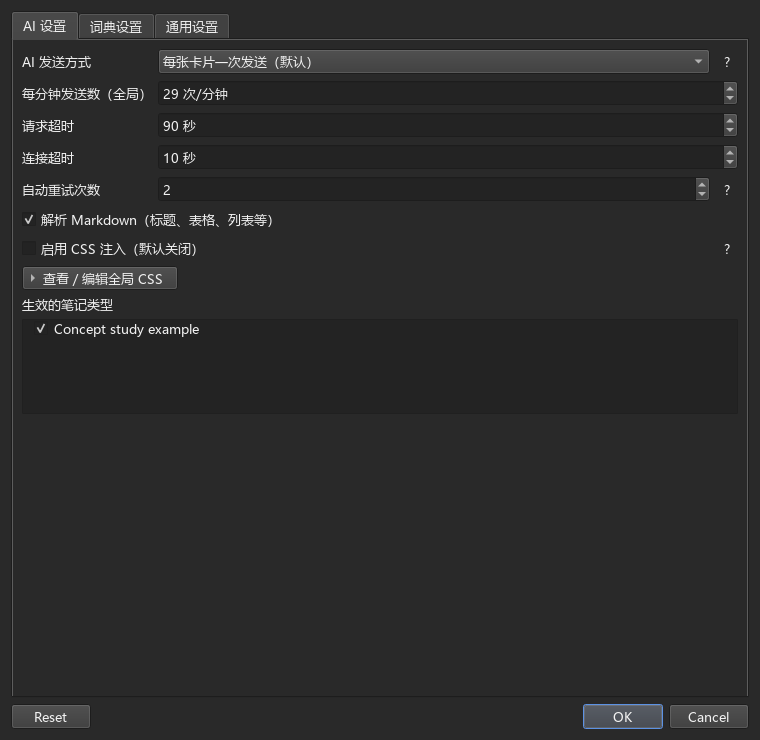
每分钟发送数、连接超时、请求超时和重试次数也在此页调整。词典设置用于调整词典线程数、匹配方式和填空格式;通用设置用于调整语言、定时制作和备份方式。不清楚某项的作用时,点击旁边的 ? 查看说明。
查询开始后,点击 后台运行 即可继续使用 Anki。从 FastCM → 任务进度 可以查看进度和结果;任务结束后点击 完成任务 收起进度栏。查询结果约每 30 秒写入一次,结束时会写入剩余结果。
关闭 Anki 会中断任务。下次启动时,如果出现恢复提示,可以点击 恢复结果,写入已经收到并缓存的内容;尚未完成的请求不会因此补回。
每个笔记类型默认使用第一份配置作为星标配置。需要更换时,在选项页点击另一份配置的星号并保存。
打开 插件设置 → 通用设置,勾选 启用定时制作,设置检测间隔、选择笔记类型,再点击 确定。插件只处理启用后新增笔记的空字段;如果上一批任务还没有结束,本轮会跳过。
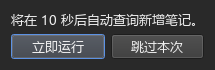
发现待处理笔记后,顶部会出现 10 秒倒计时。可以点击 立即运行 或 跳过本次;关闭提示也会跳过,不操作则自动开始。请保持 Anki 打开,任务结束后从 任务进度 查看结果。
修改设置后点击 确定 保存。如果修改后直接关闭窗口,会询问是否保存;没有修改则直接关闭。
在 插件设置 → 通用设置 → 配置保存 中选择备份方式:
_fastcm_backup.zip,随 Anki 媒体同步。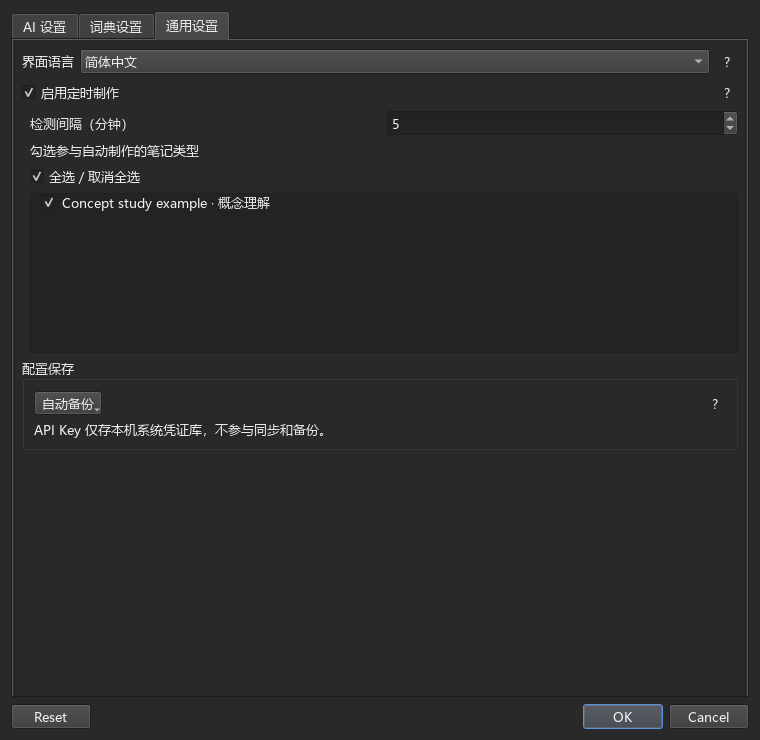
ZIP 中只保存 AI 配置和当前 Python 词典脚本。字段映射、脚本启用勾选等普通配置保存到媒体库的 _fastcmcfg.json,不放进 ZIP,手动备份模式下也一样。词典文件路径仍仅存本机。
API Key 保存在本地,由系统统一管理,不会随配置上传或同步。
自动备份模式下,打开选项时如果发现配置不同,可以选择 覆盖(本机配置替换备份)、同步(备份读入本机)或 取消(暂时保留两边)。如果是脚本不同,会逐个文件让你选择保留哪一侧,详见下文。
备份不包含词典文件、词典路径、词典附带的 JS、对话记录和回收站中的旧脚本。换电脑后,还需要添加这台电脑上的词典文件夹。首次使用时优先读取本版配置,没有时尝试读取 FastWQ 旧配置,后续保存使用 FastCard Maker 的文件名。
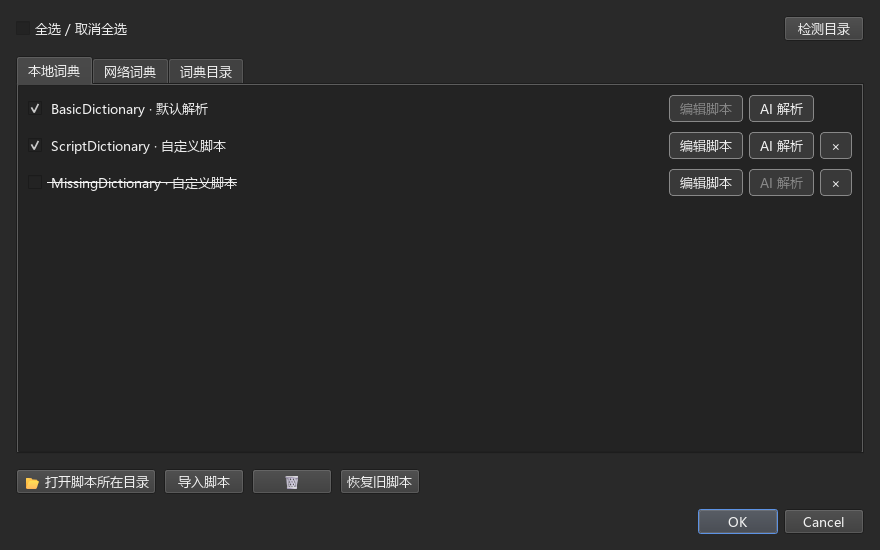
需要整条词条时可以选择默认解析;需要单独提取释义、例句或发音时,选择提供这些数据项的解析脚本。已有 .py 脚本请通过 导入脚本 添加,把它放在词典文件夹旁不会自动导入。
新版脚本优先按 MDX 文件名关联词典,内部标题可以作为补充条件,不需要保存本机的绝对路径。词典移动后,重新添加所在文件夹并检测即可。旧脚本中的固定路径和音频处理逻辑仍然兼容;同时提供文件名和旧路径时优先匹配文件名。如果出现多个匹配文件,需要调整导入目录,插件不会随意选一个。
词典或脚本失效时,管理页和选项页会给原名称加上删除线,查询时跳过,不会改用其他来源。管理页每行的 删除 按钮需要二次确认;缺失项会移除记录,仍在本机的脚本会移入回收站。选项页不提供删除按钮。失效的数据项请重新选择。
图片或音频无法导入时,先确认 MDD 和资源文件完整,再到 词典设置 尝试开启媒体资源模糊匹配,并检查导入结果。如果词典附带的 JS 修改了媒体路径,可以尝试下面的 AI 解析方法;缺失的媒体文件本身无法靠脚本补回。
在词典旁点击 AI 解析。建议使用前面单独建立的“词典解析”AI 配置;需要提高思考强度时,按模型支持的参数设置。
concept、动词 maintain 和形容词 relevant;找不到时会尝试备选词,也可以自行填写三个词典收录的不同词。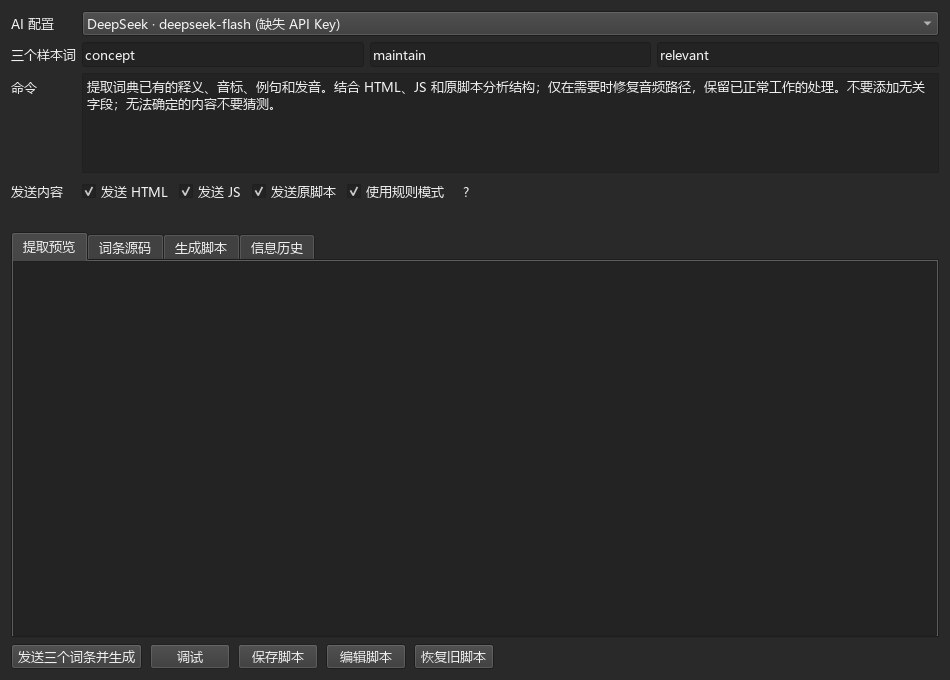
返回 JSON 规则 默认勾选:AI 描述提取规则,再由插件生成 Python,适合常规提取。取消勾选后,AI 直接生成完整 Python,可以处理复杂路径或重新组织嵌套内容。两种方式最终都保存为 .py 脚本,首次生成和后续对话都会使用对应的提示词。
直接生成 Python 时,生成阶段只检查语法和结构。点击 调试,以及保存后加载脚本时,会执行代码;检查通过不代表运行结果一定正确。
点击 调试 会一次检查三个样本,结果和错误详情都显示在 信息历史。如果有问题,在下方输入框说明需要怎样修改,再点击 发送消息。
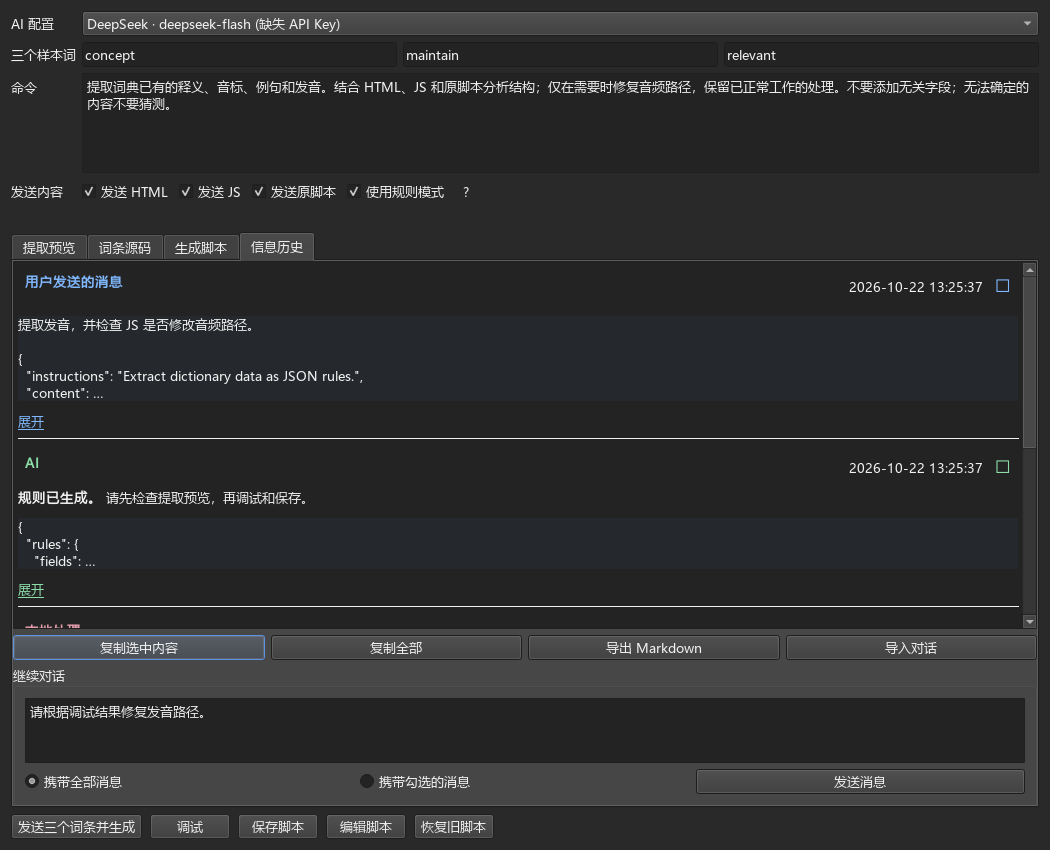
携带消息和源码会增加 Token 用量。对话过长时,可以只勾选有用的消息,或关闭窗口重新开始。AI 修改脚本后,需要再次检查并点击 保存脚本。
自动备份模式下,如果本机脚本与 ZIP 备份不同,会显示文件列表,让你逐行选择 本机版本或备份版本,默认选择备份。表头勾选框可以全选一侧,再逐行调整。
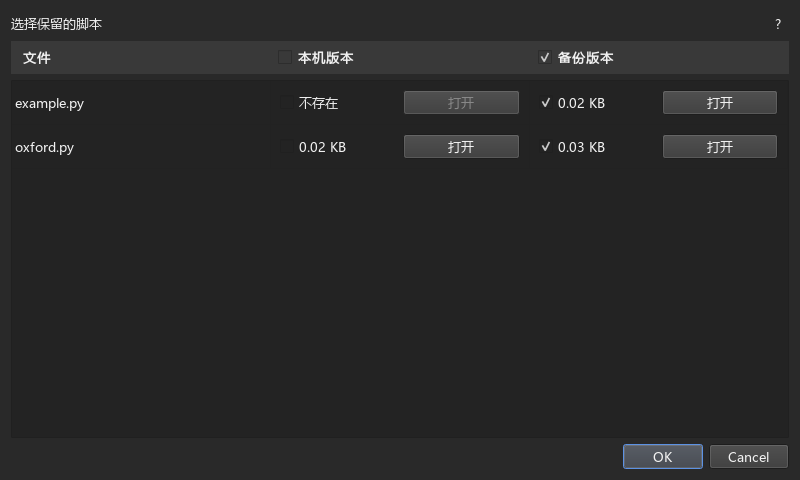
每一侧都显示文件大小,点击 打开可只读查看源码,不会运行。选择显示“不存在”的一侧表示删除对应文件,确认前会再次提醒;不确定时可以关闭窗口,保留原状。
需要撤回脚本修改时,点击 恢复旧脚本,按文件名和删除时间选择版本,再点击 恢复;也可以先点击 打开查看。这些旧脚本只保存在本机,不同步、不进入备份 ZIP,保留七天后自动清理。 恢复后,它才作为当前脚本参与备份。