AnkiWeb
- Votes
- 0 (👍 0 · 👎 0)
- Updated
- 2026-10-29
- Anki versions
- 26.09.3~
- Languages
- XML, Python, HTML, JSON, JavaScript
- Description language
- en
AnkiWeb addon 364916108
Generates offline kanji recognition and writing cards from existing Anki vocabulary, with setup wizard, card migration, and separate progress statistics.
Open on AnkiWeb GitHub Ask about alternatives
active
| Min Anki | Max Anki | Updated |
|---|---|---|
| 25.07 | 26.09.3+ | 2026-10-29 |
Loading…
Generates furigana readings for Japanese text, provides Japanese note types, kanji statistics, and dictionary lookup, with customizable furigana display in card templates.
Automatically creates kanji cards in an optimal learning order based on vocabulary in your decks, with dictionary lookup, statistics, and recognition or production support.
Adds Japanese vocabulary to kanji-writing cards using known words from other decks, prioritizing common words, hiding target kanji, and saving results in fields for syncing.
Automatically fills Anki fields with kanji readings, hiragana, word type, and limited JMdict definitions offline, plus example sentences, with configurable field mappings and bulk deck updates.
Auto-generates Japanese vocabulary notecards from a word list via the Jisho.org API, including definitions, readings, JLPT level, kanji explanations, furigana and example sentences, placed in a custom deck.
Automatically fills Japanese vocabulary and sentence flashcards from a typed word or sentence, adding translations, kana readings, kanji readings, transitivity, part-of-speech, offline dictionary lookups, and Google TTS audio.
Create kanji recognition and writing cards from the Japanese vocabulary you already study in Anki. Kanji Katanki works offline and keeps recognition and writing progress separate.
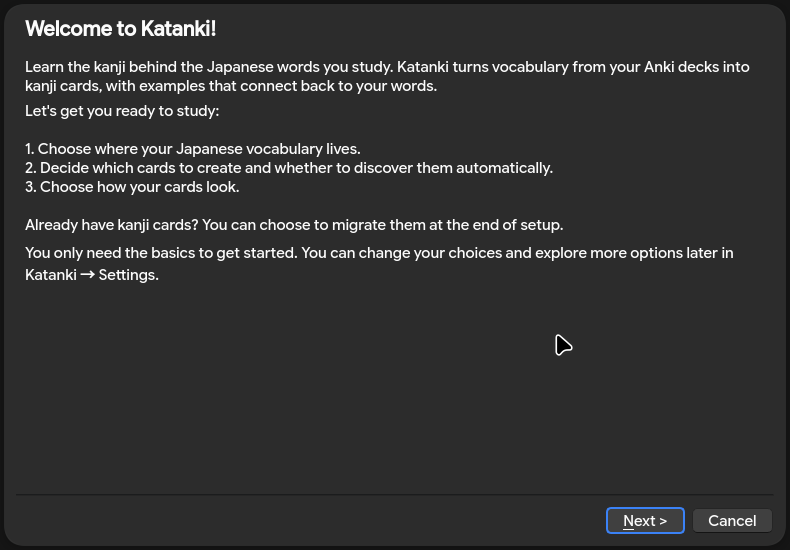
The setup wizard walks you through vocabulary sources, destination decks, and card appearance. Choose your decks and expression fields, then preview and approve your first kanji cards.
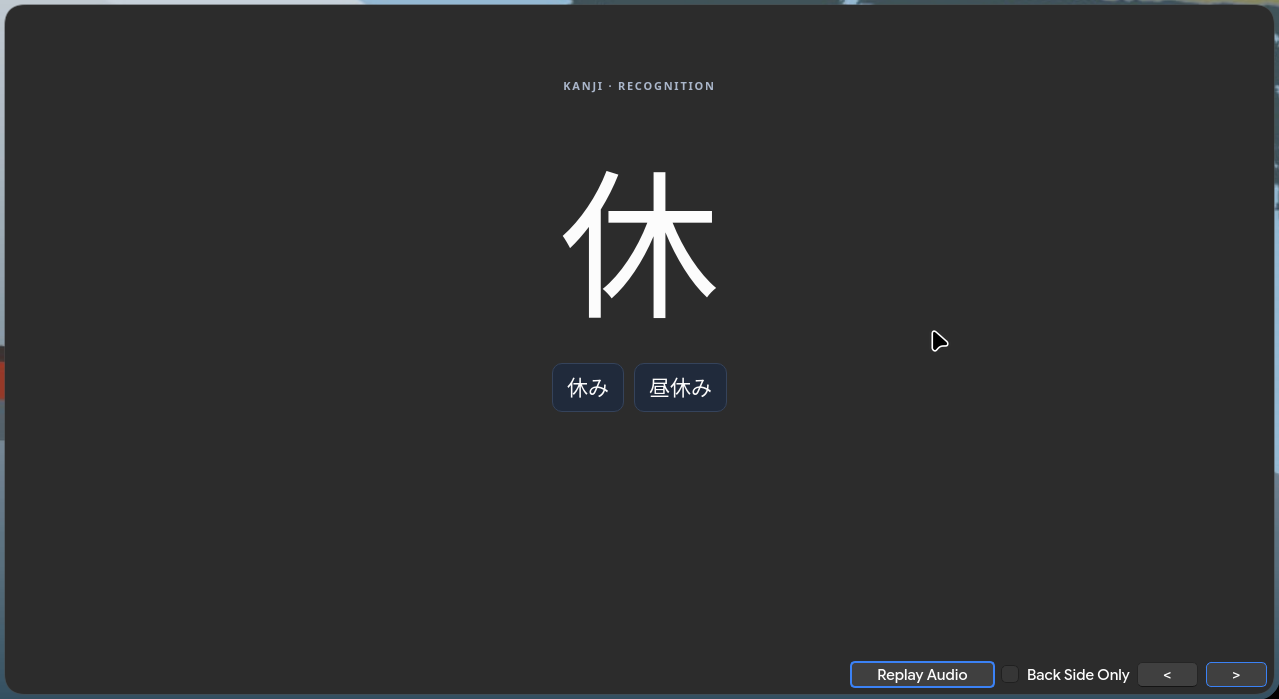
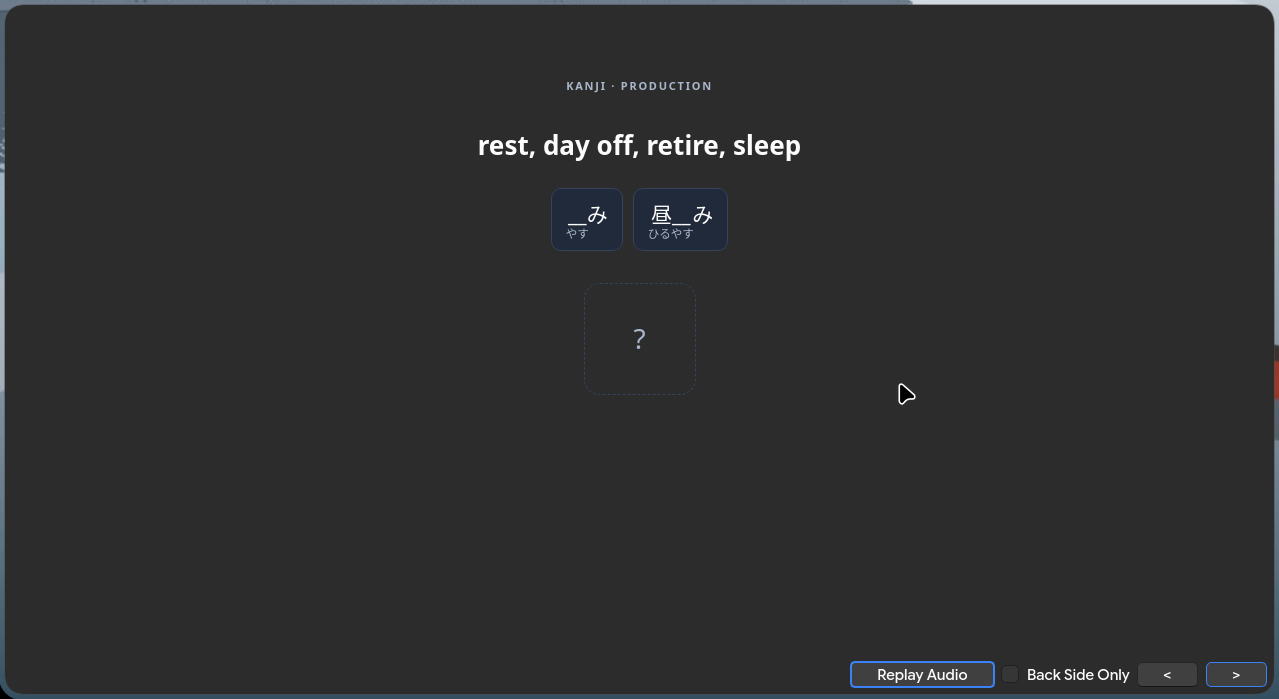
Study recognition, writing, or both. Choose which examples appear, adjust their limits, and toggle furigana independently on the front and back. Writing cards use meanings and masked examples from your vocabulary.
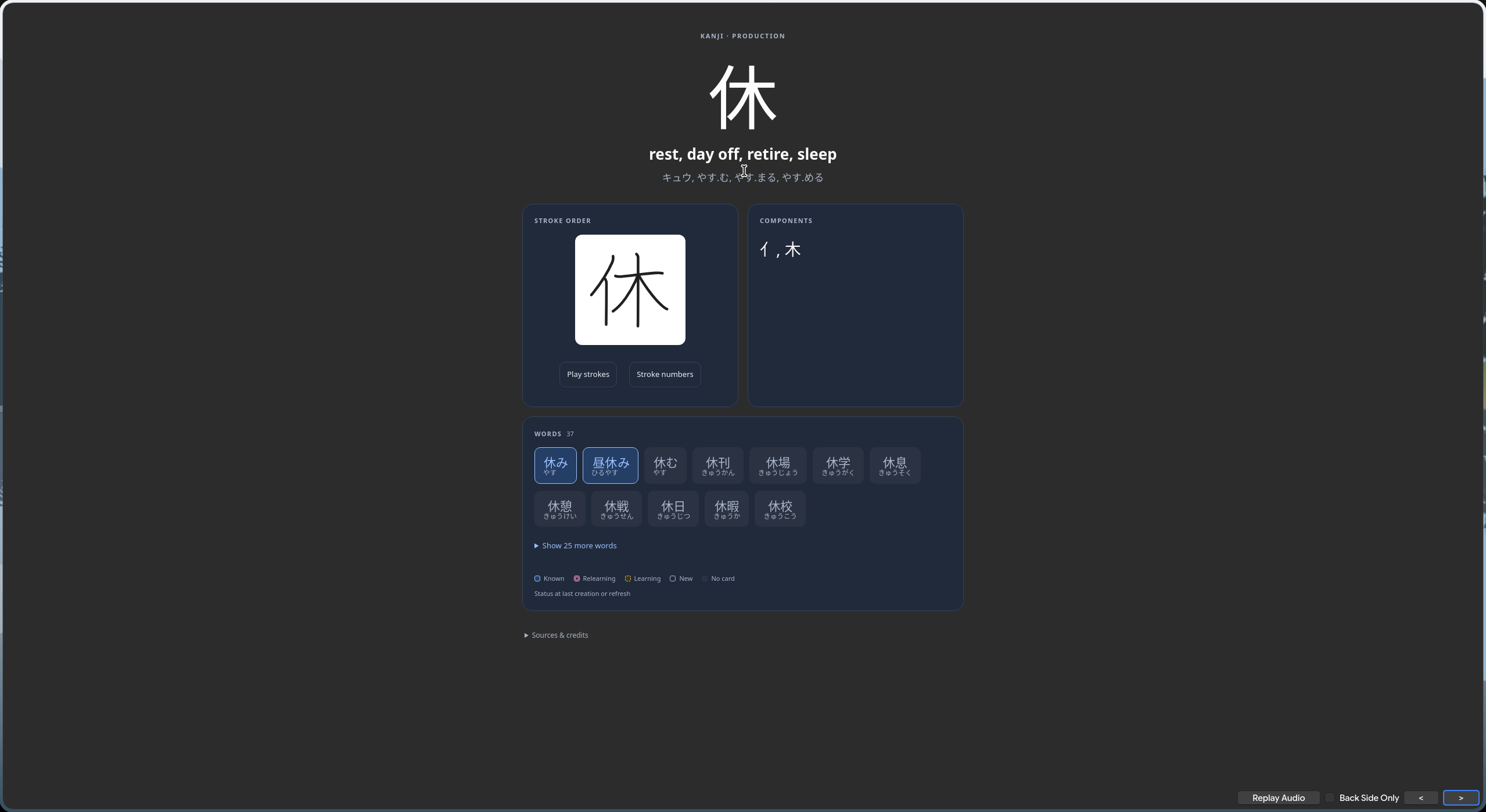
Flip the card for readings, meanings, stroke playback, components, and vocabulary examples with their saved learning states.
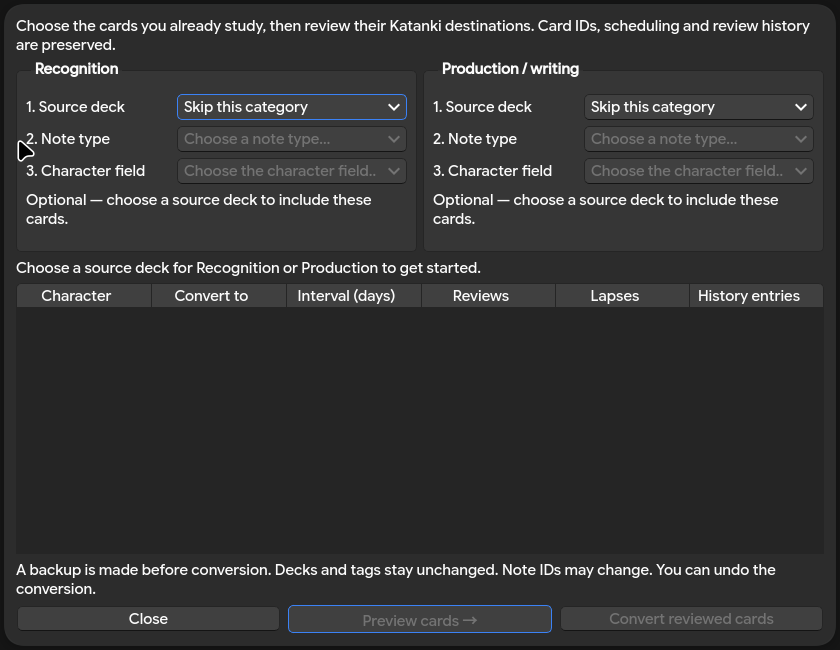
Already using Kanji GOD or another kanji deck? Map supported source decks, note types, and character fields, then review the conversion. Card IDs, scheduling, and review history are preserved, with an automatic backup and Anki Undo.
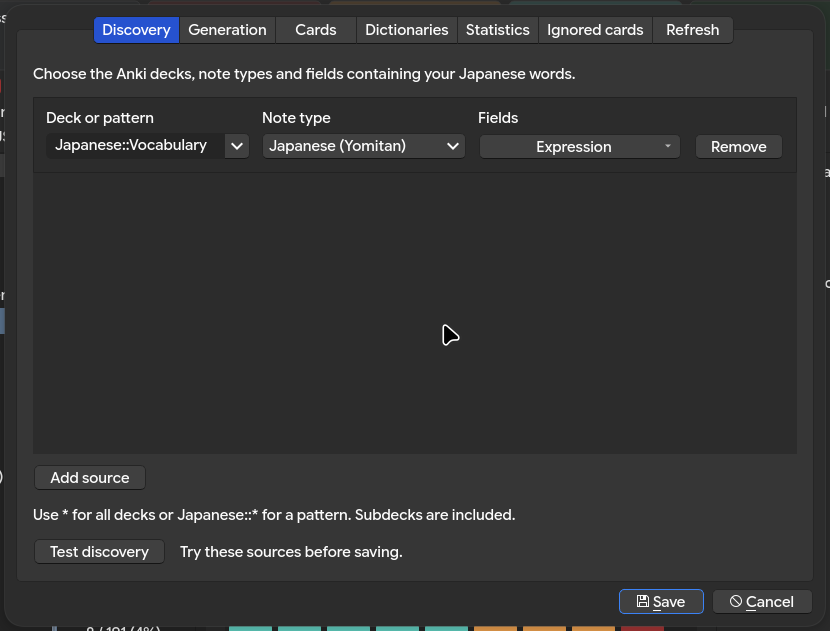
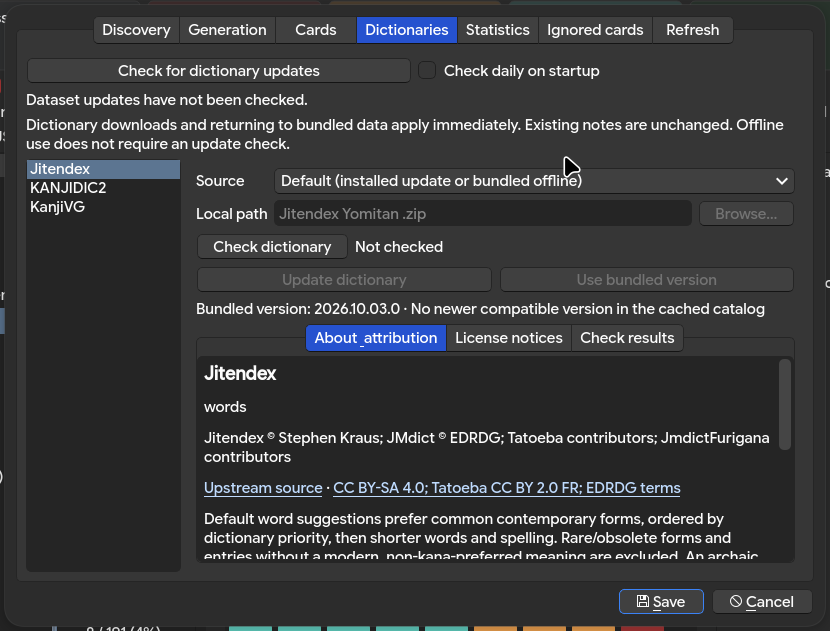
Pick your vocabulary sources, include subdecks, choose where new cards go, and control automatic refresh. Dictionaries work offline out of the box, with optional updates and local overrides when you want them.
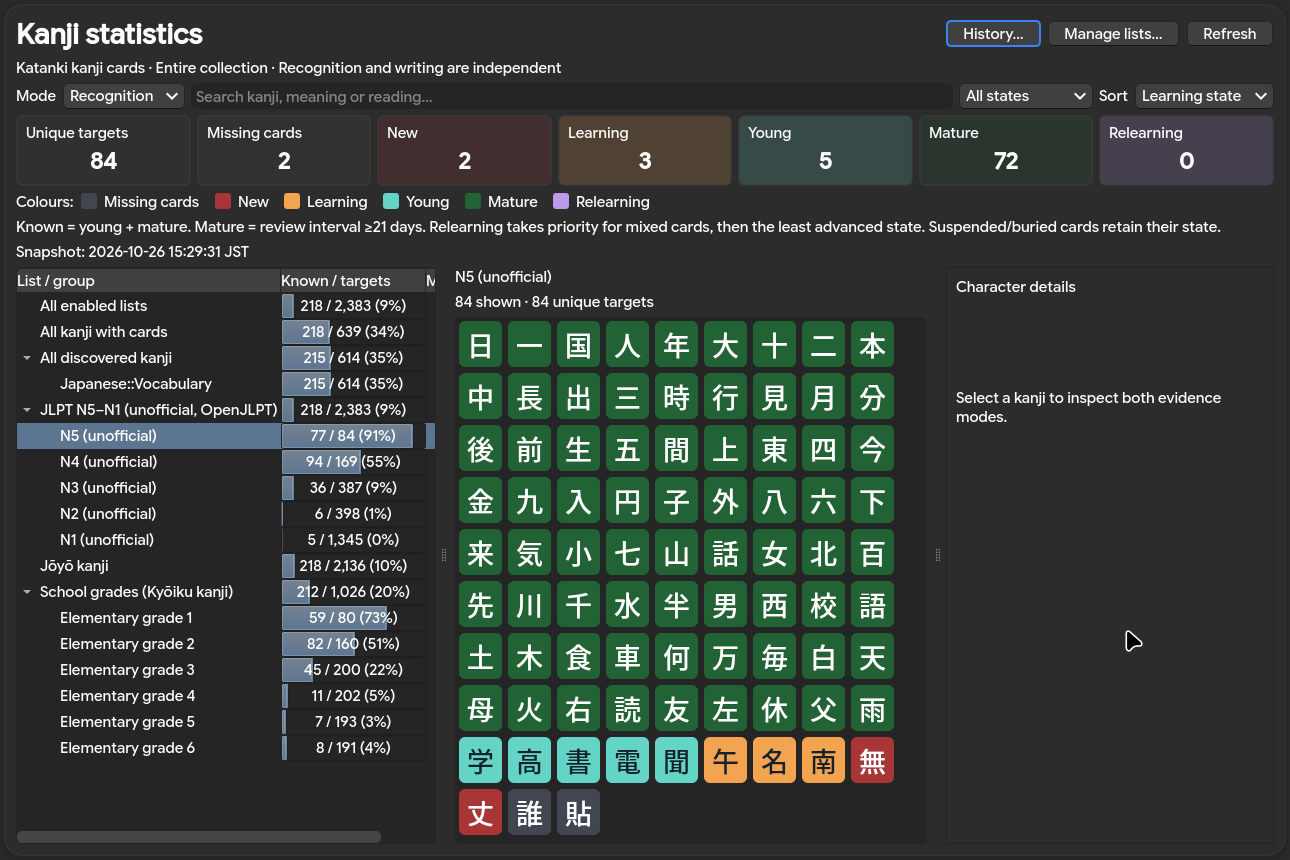
Explore a colour-coded kanji grid, compare progress across school grades and unofficial JLPT lists, and inspect individual characters. Recognition and writing are tracked separately, so knowing a kanji does not automatically count as being able to write it. Review-history charts are one click away.
Restart setup from Katanki → Settings… → Refresh → Restart setup…. Advanced settings, dictionary controls, and statistics are available from the Katanki menu.
Back up your collection before converting existing cards. Use Katanki → Migrate Existing Cards… to review supported conversions. Migration also creates an automatic collection backup and supports Anki Undo. Note IDs may change; unmapped sibling cards remain in their original notes. Cloze sources and unencoded Parts mappings are unsupported.
Refresh can overwrite managed example fields according to your saved settings. Generated cards remain studyable without the add-on or source decks. The add-on itself runs in desktop Anki; it does not run on mobile.
Dictionaries, vocabulary suggestions, and stroke diagrams come bundled. Set up your sources, generate cards, explore statistics, and review without an internet connection. No extra account or separate downloads needed to get started. Generated cards stay studyable without the add-on or source decks, too. Internet access is only needed if you choose to download dictionary updates.
Documentation and source code · Report a problem. Please include your Anki version, operating system, steps to reproduce, and any error message.
Code: MIT. Bundled data has separate licenses: KANJIDIC2 © James William Breen and EDRDG (CC BY-SA 4.0); KanjiVG © Ulrich Apel and contributors (CC BY-SA 3.0); Jitendex © Stephen Kraus (CC BY-SA 4.0), with upstream attribution and component licenses retained. See third-party notices and the in-app attribution for details. Preserve applicable attribution when sharing generated decks.
Inspired by Migaku Kanji GOD. This is an independent project and is not affiliated with Migaku.
Offline-first kanji learning for desktop Anki. Phase 3: saved settings and refresh.
On first opening a profile, Katanki guides you through vocabulary sources, optional automatic generation and destination decks, and basic card appearance. Finish setup to discover your first cards, migrate existing kanji cards through the migration review, or defer vocabulary setup until you have a deck. Restart this flow with Katanki → Settings… → Refresh → Restart setup…; unsaved settings are discarded. Cancelling or closing setup leaves preferences unchanged, shows where to restart it, and marks it as seen so it will not open automatically again. This is saved per collection.
Advanced options remain under Katanki → Settings…. Choose Katanki → Refresh and generate Kanji Cards to scan saved sources. Refresh overwrites managed examples when enabled, preserving review progress. Only new eligible cards open a single creation review, with category tabs, green selected tiles, and an inline front/back preview. Approve creation with Create … cards. Generated notes are never deleted when source vocabulary disappears. See the implementation specification. Track completed milestones and remaining work in the roadmap.
Inspired by Migaku Kanji GOD. Kanji Katanki is an independent project and is not affiliated with Migaku.
Install uv, then run from the repository root:
uv sync --locked
uv run python scripts/build_addon.py
uv run pytest
uv run ruff check .
uv run ruff format --check .
To measure line and branch coverage for the add-on and maintenance scripts:
uv run --locked pytest --cov --cov-report=term-missing --cov-report=html --cov-report=xml
Open htmlcov/index.html for an interactive report; coverage.xml is available
for IDEs and other tools. Generated reports are ignored by Git. No minimum
coverage threshold is enforced. Tests that require bundled data still need a
build first, as described below; coverage does not include the separate Anki
host smoke test.
The build produces dist/kanji-katanki.ankiaddon, with its entrypoint and manifest at
the archive root. It contains all runtime Python code and requires no development
tools on the end user's machine. Anki provides Python and Qt; do not install aqt
into the development environment. Kanji Katanki code is licensed under the
MIT License. Bundled dictionary and stroke data have separate
CC BY-SA licenses; see third-party notices. The current
archive is about 43 MiB and includes dataset versions, checksums, and license copies.
Builds fetch immutable, checksum-locked release packs and generate ignored payloads;
dataset binaries are not stored in Git. Use scripts/build_addon.py --offline to
require prepared data or verified local cache. A fresh build needs network access;
installed users do not. Settings → Dictionaries can download independent updates
or return to bundled defaults; daily startup checks are opt-in. Tests never
download data on their own and skip bundled-data
checks until the first build. See dataset maintenance.
src/katanki/anki/ owns host integration. Other feature packages will be added as
needed. Anki loads the packaged __init__.py. Existing IDE settings are preserved.
Use <type>: <short summary> for commit messages. Write the summary in the
imperative (for example, "add" or "fix"), without a trailing period.
| Prefix | Use for |
|---|---|
feat: |
New features |
fix: |
Bug fixes |
docs: |
Documentation changes |
refactor: |
Code restructuring without changing behavior |
test: |
Adding or updating tests |
style: |
Formatting changes without changing behavior |
build: |
Build tooling or dependency changes |
ci: |
Continuous integration changes |
chore: |
Other maintenance |
Examples:
feat: add kanji reading filters
fix: include subdecks when scanning vocabulary
docs: clarify offline dataset setup
An optional scope can identify the affected area, such as
fix(scanner): ignore duplicate vocabulary. For a breaking change, add !
before the colon (for example, feat(config)!: rename dictionary path settings)
and explain the migration in the commit body.
Use the Python interpreter that can import your installed Anki and Qt. On this
Linux machine that is /usr/bin/python (the uv environment is separate):
/usr/bin/python scripts/anki_dev.py --run
Omit --run to prepare the profile and print the launch command without starting Anki.
The helper builds and stages Kanji Katanki into .anki-test/addons21/katanki, creates
an isolated Katanki Development profile, and disables automatic sync and
update checks there. It refuses an existing base directory without its development
marker. Rerunning refreshes staged add-on code and preserves the test collection.
Close the development Anki instance before running it again. Restart Anki after
refreshing code. .anki-test/ is ignored by Git and is separate from your normal
Anki data directory. A separate single-instance key keeps launches separate from
your normal Anki process. Do not put personal study data in this test profile.
Manage target lists under Katanki → Settings… → Statistics → Lists. Choose bundled/updated or local JSON sources, check contents and provenance, and manage list updates independently of the dictionary controls under Dictionaries. The daily dataset update-check schedule is shared by both pages. The statistics dashboard is available under Katanki → Statistics.
The native Qt statistics window shows known percentages and mature counts for each list and each school grade, in list order. Select multiple grades to see their combined unique targets. It includes recognition/writing modes, state counts, a searchable kanji grid and character details. The grid defaults to learning-state order (mature, young, relearning, learning, new, missing); switch to dataset list order with Sort. All kanji with cards is a dynamic list of unique kanji with Katanki recognition or writing cards, including kanji outside enabled target lists. It refreshes with the snapshot and keeps the same membership in both modes. All discovered kanji scans the saved Discovery sources and has a sublist for each source deck, including child decks. It includes ignored kanji and kanji without Katanki cards. Both dynamic lists update with Refresh. Colours and the legend distinguish grey missing cards, red new cards, orange learning, purple relearning, turquoise young and green mature. Counts use Katanki's own kanji cards across the collection; vocabulary exposure does not imply recognition or writing mastery. A mature card is in review with an interval of at least 21 days. For mixed matching cards, relearning takes priority, followed by the least advanced state. Missing cards remain distinct from new cards. Suspended/buried cards retain their learning state. Click a kanji for matching Anki cards, recorded-answer pass rate and offline dictionary/stroke data. Refresh reloads the snapshot; collection changes mark it as stale. Manage lists opens settings. The dashboard never changes cards or scheduling. History… opens cumulative unique-kanji review and daily retention charts for recognition or writing, with exact daily values and selectable periods. History uses current Katanki kanji cards across the collection; cumulative reviewed does not imply mastery. See the history policy.
To convert cards from Kanji GOD or another add-on, open Katanki → Migrate Existing Cards…. Choose a source deck under Recognition and/or Production, then its note type and character field. Leave a category on Skip this category to exclude it. Choices become available in order; Preview becomes available once all selected sources are complete. Common character-field names are selected automatically. All cards matching the selected deck and note type are included.
The character field must contain one kanji or radical. Parts are identified within the same recognition/writing sources, without a separate Parts mapping. Recognized kanji take precedence over component use; Unicode radicals and supported component characters become parts. Missing dictionary data alone does not imply a part. Part writing needs a source Name, Meaning, Meanings, Keyword or Mnemonic field for its clue. Preview shows kanji/part destinations and learning direction in a table, with skipped-card details separately. Duplicate identities, ambiguous fields, unavailable content and cards in filtered decks are skipped. Return filtered cards to their home decks before trying again.
Convert … cards creates a collection backup and moves the original
cards into Katanki note types. Card IDs, review history, scheduling (including
suspension/burial and FSRS data), flags, tags and deck membership are preserved.
Note IDs can change. Original source fields are not copied into an archive field;
use the automatic pre-conversion backup to recover them if needed. Existing
MigrationSource fields are removed from target note types during conversion.
Unmapped sibling cards keep their source note; empty source notes are removed.
Progress shows the current stage and card counts during scanning, content preparation,
conversion and verification. Conversion is
one Anki Undo operation, and failures roll back the operation. There are no separate
old cards to delete or suspend after conversion. After success, the migration window
closes and Refresh runs with your saved update preferences to update examples and card data. Unencoded Parts keys and cloze
note types are not supported by this migration screen.
Manage your own lists under Settings → Statistics → Personal lists. Import a versioned JSON list to preview its groups, unique kanji, provenance, and validation warnings before saving. Replacing a list shows added and removed kanji and needs explicit confirmation. Export creates a JSON backup; Remove deletes only the list. These actions apply immediately, including when Settings is later cancelled. Personal lists stay local to the current profile and do not sync; export/import to transfer them. Imported lists appear in the dashboard, and selected list/group IDs are remembered. See the target-list format for an example JSON file. Importing a list does not create cards.
Use Katanki → Settings… → Discovery → Test discovery to inspect vocabulary and kanji candidates without saving settings or generating cards. See dataset setup and fixtures for dictionary preparation.
景色. Select generation categories and their target decks/tags.Missing or invalid settings point back to Settings. Empty sources, kana-only fields, and disabled dictionaries produce explanatory messages. Repeated clicks during an active refresh do not launch duplicate scans or generation windows.
Kanji production fronts are generated automatically: the kanji's dictionary
meanings plus every distinct matching word from the selected vocabulary fields.
For sources 時間, 間, and 真ん中, production for 時 shows __間; production
for 間 shows 時__ and __. 真ん中 supplies an example for 中, not 時 or 間.
Every occurrence of the target in a word is blanked. HTML, media references, ruby
readings and bracketed furigana are excluded from example words. Select vocabulary
expression fields; no morphological word segmentation of sentences is performed.
No manual production prompt is required. A missing meaning or matching source word makes production unavailable. Identical generated clues within a note type are blocked; add distinguishing source vocabulary (or mnemonic names for components). Prerequisites generate recognition only. Examples are copied when creating notes and remain available after source deletion. Use Katanki → Settings… → Discovery to add multiple vocabulary sources. Each source selects a deck or wildcard pattern, a note type, and one or more fields. Optionally select a Reading field containing the kana reading for each vocabulary word. Generated examples and Refresh prefer this reading over the dictionary reading; blank readings fall back to the dictionary. Use this with single-word expression fields.
On the back, tap or click an example word to open its offline dictionary meaning. Tap outside the popup, use its close button, or press Escape to dismiss it. Refresh existing notes to add definitions and update unmodified stock layouts.
For example:
| Deck or pattern | Note type | Field |
|---|---|---|
* (all decks) |
Japanese (Yomitan) | Expression |
Japanese::Vocab |
Basic | Front |
Use Test discovery to try the current rows before saving. A read-only background scan shows matched note counts, unique vocabulary, and kanji candidates in a results dialog (up to 1,000 entries per list). It uses unsaved edits without saving settings or generating cards. Kanji candidates are extracted characters; dictionary support is not checked by this quick test. Empty matches and invalid source rules show messages to help correct the configuration.
Use Add source / Remove to manage rows. * matches any text; other
characters are literal and matching is case-sensitive. Matching decks include their
subdecks, so Japanese::* covers Japanese subdecks. Wildcards pick up new matching
decks on the next scan. Decks selected from the dropdown retain their IDs across
renames; typed names/patterns follow names. Overlapping rules merge selected fields
and count each source note once, even when it has multiple cards.
The Generation tab has Recognition, Production, and Parts subtabs. Each saves automatic selection, a target deck, default tags, and source-tag copying.
To add kanji outside discovery, choose Katanki → New Kanji Cards, paste or type kanji, then click Review new cards. Repeated characters and non-kanji text are ignored. No discovery sources are required. The same enabled generation categories, decks, tags, parts, ignored-card rules, and duplicate checks apply; approve creation in the review window. Pasted lists do not become example vocabulary.
Only enabled categories participate in refresh; new cards require creation approval. Recognition and Production are enabled by default; Parts is opt-in. Parts enables graphical component recognition and its prerequisites; parts without a usable name remain unavailable.
Separate default tags and tag filters with spaces. Enable Copy tags from matching
source notes with an empty filter to copy all tags, or enter source::NIJ::* to
copy only tags such as source::NIJ::lesson1 (excluding source::NIJ and unrelated
tags). Filters match complete tags, are case-sensitive, and support * wildcards.
Multiple filters are alternatives. Default tags apply regardless of copying.
Tags come from selected source fields containing the generated kanji; parts inherit
tags from the source vocabulary containing their parent kanji. The generation
review shows the target deck and tags for each selected tile. Missing category targets
can be selected in the same review window. Saved deck IDs survive renames; deleted
targets must be replaced. Existing generated notes keep their tags and decks. Settings are
versioned and stored in the current collection; they survive restarts. Subdecks are
included at scan time. Refresh uses the saved source rules and generation preferences. Production can be enabled in settings, and creation requires approval. Missing/deleted source references are shown for review;
unsupported settings versions are preserved and reported rather than reset.
Version 1–6 settings migrate to version 7 without losing source rules or generation
preferences. Existing shared example choices are preserved on both sides.
The Cards tab, between Generation and Dictionaries, has Recognition,
Production, and Parts subtabs. Recognition and Production have separate
Question — front of card and Answer — back of card groups. Each offers:
For your own words on the question and dictionary additions on the answer, choose
the first option under Examples on the front and the second under
Examples on the back. Front visibility and the front limit do not change the
answer's selected list. Recognition fronts show unmasked words; Production fronts
use masked clues. Dictionary words selected only for the back never distinguish
production questions during ambiguity checks. Editable user examples are deferred
to Phase 6; new note types omit UserExamples and existing contents are preserved
but ignored by stock cards and refreshed clues.
Furigana has independent front/back switches: Production defaults to both sides,
Recognition to the back only. Readings appear below kanji groups with kana-based
alignment and extra chip spacing. Known-only filtering remains unavailable. All matching
Anki words are currently eligible, with their saved review states shown on the back.
Parts instead saves whether to show the part's name on the front, show example
kanji containing it on the back, use kanji from your vocabulary alone or also
other kanji, and automatically refresh example kanji (on by default).
Each category also saves a front-example limit: 5 by default, with 0 meaning
show all. All eligible managed examples remain stored.
Backs show every configured stored example, regardless of the front limit or
front-example visibility. Long backs show 12 chips and a Show N more words
disclosure for the rest, with the full word count displayed. Words sort by
known → relearning → learning → new → no card. Chips use blue for known words,
rose double borders for relearning, amber dashed borders for learning, plain
outlines for new, and gray for no matching configured source card.
Statuses are saved at creation/refresh and travel
with exported cards; the next enabled refresh updates them. Cards can be studied
offline without the add-on or source decks. Exact old stock layouts upgrade on
creation/refresh; customized templates and styles are preserved.
Choose My Anki words + Jitendex dictionary words for either side to add
Jitendex suggestions after your Anki words. The complete pinned Jitendex export lives at bundled/jitendex.zip
with the other datasets; an in-memory index ranks common words. Parts show
containing kanji on the back; Production fronts show masked clues. The known-only
filter includes learning, review and relearning Anki words on both sides and excludes
new/unmatched words. Explicit Jitendex additions are unaffected. Creation and Refresh
save the filtered examples for offline review. Editable user
examples and live production clues after editor changes are planned for Phase 6.
The Refresh tab saves Update tags from source vocabulary (off by default),
Update example words (on by default), and Update dictionary data (off by
default) for both manual and automatic refresh. Dictionary data refers to card
content from the selected dictionaries; pack downloads stay under Dictionaries.
These controls are independent of the automatic-refresh switch. Example updates
respect both Update example words and each category's automatic-example-refresh
setting under Cards. Refresh overwrites Katanki-managed fields according to the enabled
update options, including manual edits and older or damaged tracking records.
Legacy UserExamples contents are retained but ignored while editable examples
are deferred. No baseline repair or migration approval is required. Tracking is regenerated with HTML-safe JSON.
Updates support Anki Undo and preserve note/card IDs, scheduling, history, tags and
decks. Empty/ambiguous production updates keep their previous clues. Tag and
dictionary-content updates remain planned; those two checkboxes save preferences only.
The tab enables automatic refresh (off by default), with separate triggers for opening a profile and completing sync. Runs wait for the deck list, active dialogs, and other refreshes to finish; repeated triggers are combined. They use the same saved sources, dictionaries, generation choices, and creation review as manual refresh. New cards require approval. Eligible existing notes have managed examples regenerated, including legacy notes and managed-field edits. Missing source settings are skipped automatically; use manual Refresh for setup guidance.
The Dictionaries tab manages KANJIDIC2, KanjiVG, and Jitendex independently.
All three use the same published release packs, build lock and update catalog. Choose the
default (a compatible downloaded update or bundled offline data), a local override,
or Disabled. KANJIDIC2 accepts XML/XML.gz;
KanjiVG accepts an extracted kanji/ SVG directory or canonical SVG ZIP. Check
dictionary loads the current selection without saving settings or changing notes.
Stroke checks verify a sample SVG; remaining strokes load on demand. Bundled checks
also verify the packaged checksum and required notices.
For Jitendex, choose a compatible Yomitan ZIP as a local override or choose Disabled to stop adding dictionary defaults. Discovered vocabulary remains available. Generation and Refresh use the active bundled, installed-update or local source. Check dictionary reports its detected version, attribution, fingerprint, term count and eligible suggestion count. Jitendex's About panel explains how suggestions are picked: common contemporary forms, ordered by priority then length; your source vocabulary comes first. Local overrides preserve their original archive.
About & attribution shows credits, source/license links, bundled versions, entry counts and SHA-256 checksums. License notices exposes the bundled upstream license/documentation copies, and Check results shows detected provenance or an actionable error. Settings persist per collection and are used by refresh; disabled datasets remain excluded. Check for dictionary updates and Update dictionary install compatible packs independently of add-on releases. Downloads apply immediately; Use bundled version restores the offline default. Optional daily startup checks are saved with Settings. Downloaded packs and update-check preferences are shared by profiles in the same Anki installation.
The menu refresh workflow is implemented; automatic background triggers remain later Phase 3 work.
Writes are grouped under Anki Undo. If a write fails partway through, the error reports the created count; undo the operation or refresh again to resume safely. Existing notes are never updated automatically, including after changing source vocabulary or mnemonic names. Recognition counts refresh on your next scan.
Run the critical lifecycle harness against a disposable temporary collection:
/usr/bin/python scripts/smoke_generation.py
/usr/bin/python scripts/smoke_generation_batch.py
/usr/bin/python scripts/smoke_settings.py
For an automated real-host smoke test that opens the dialog and exits:
/usr/bin/python scripts/anki_dev.py --smoke
The smoke test creates a disposable temporary profile with a separate process
identity, leaving the persistent development profile alone. It loads the built
archive through Anki's add-on loader, verifies that repeated registration creates
only one Katanki menu with Refresh and Settings commands, checks the add-on log file, opens a real Qt dialog, and
compares complete notes/cards/revlog snapshots before and after scanning. It then
checks settings Save/Cancel and saved defaults, generation cancellation/approval, all four note types, and stroke playback
and numbering in the real webview. The temporary profile is removed on exit. It uses Anki's private
_run test entrypoint, so the helper may need adjustment with future host releases.
To install the archive manually, launch Anki with the isolated base above, open
Tools → Add-ons → Install from file, choose dist/kanji-katanki.ankiaddon, then restart
with the same -b argument. Packaging follows the
official Anki add-on instructions.
Development checks run on Python 3.12.14. The installed integration target is
Linux desktop Anki 26.09.3 with Python 3.14.8. Python >=3.12 is a development
constraint, not a claim of support for every Anki version. Windows/macOS and
older Anki releases remain unverified. The Phase 0 baseline is Anki 26.09.3 /
Python 3.14.8 on Linux; no lower minimum is claimed. See the local smoke test result
below before relying on host compatibility.
Smoke result (2026-10-22): passed on the installed Linux host above using Qt offscreen. The packaged add-on scanned fixture vocabulary with deck/note-type/field filtering and duplicate suppression, displayed dictionary details, rendered its SVG, and left all notes/cards/revlog rows unchanged. Bundled defaults with empty path fields and missing datasets were also checked. Menu registration and per-add-on logging passed. The successful check ran outside the restricted sandbox against a disposable temporary profile only. See dataset verification for the separate real-upstream format check. Cross-platform host compatibility is unverified.
Phase 2 verification (2026-10-22): passed on the same Linux host. A disposable real collection verified native review history and scheduling preservation after source deletion, selective production, idempotent reruns, prompt collision checks, partial-failure recovery and grouped Undo. The packaged Qt-offscreen check verified Cancel/approval, all four note types, and offline stroke playback/numbering in the real Anki webview. Human visual review and other platforms remain unverified.
On the verified Anki version, Katanki uses Anki's addon.katanki logger hierarchy.
For the persistent development profile, logs are written to
.anki-test/logs/addons/katanki/katanki.log and also reach Anki's console. Normal
startup records menu registration; failures record tracebacks and show a warning.
A failure to display the startup warning is logged without aborting add-on loading.
Unit tests cover discovery/extraction, read-only adapter boundaries, normalized dictionary lookup, manifest validation, bounded XML handling, missing profiles, dialog failures, duplicate registration, bootstrap failures, and packaging. Host behavior and exact collection preservation are verified by the smoke test above.