AnkiWeb
- Votes
- 1 (👍 1 · 👎 0)
- Updated
- 2026-10-17
- Anki versions
- 26.09.3~
- Languages
- Python, JavaScript, CSS, CSV, JSON
- Description language
- en
AnkiWeb addon 416955842
Provides seamless full-window background scenes that shift with the sun through day cycles, plus dimming, blur, albums, and post-study scene changes.
Open on AnkiWeb GitHub Ask about alternatives
active
| Min Anki | Max Anki | Updated |
|---|---|---|
| 26.08 | 26.09.3+ | 2026-10-17 |
Loading…
Transforms Anki's home screen into a customizable study dashboard with 34+ coordinated light/dark scenes, drag-and-drop widgets, progress stats, a review calendar heatmap, and countdown timers.
Replaces Anki's system title bar with a modern header or sidebar, integrating menus and window controls while preserving resizing, snapping, and theme-aware styling.
Monitors card activity during Anki reviews to pause or restart a configurable Pomodoro focus timer, show study stats, plan decks around exam dates, and optionally sync sessions.
Automatically downloads Bing images for Anki cards in bulk, optionally using Google Gemini AI to turn dictionary definitions into vivid visual scene queries, with preview, undo, and multilingual field detection.
Creates mind maps inside Anki and links them bidirectionally to flashcards, enabling visual organization, node editing, and navigation between maps and review cards.
Converts videos or audio with subtitles into Anki cards split by scenes or phrases, with playback, mobile export and condensed audio support.
Background scenes for Anki's main window that follow the sun through the day, and can change once you're done studying.
Or just set one picture as a plain background: it runs as one image behind the top and bottom bars too, with no seams, strips or odd edges.
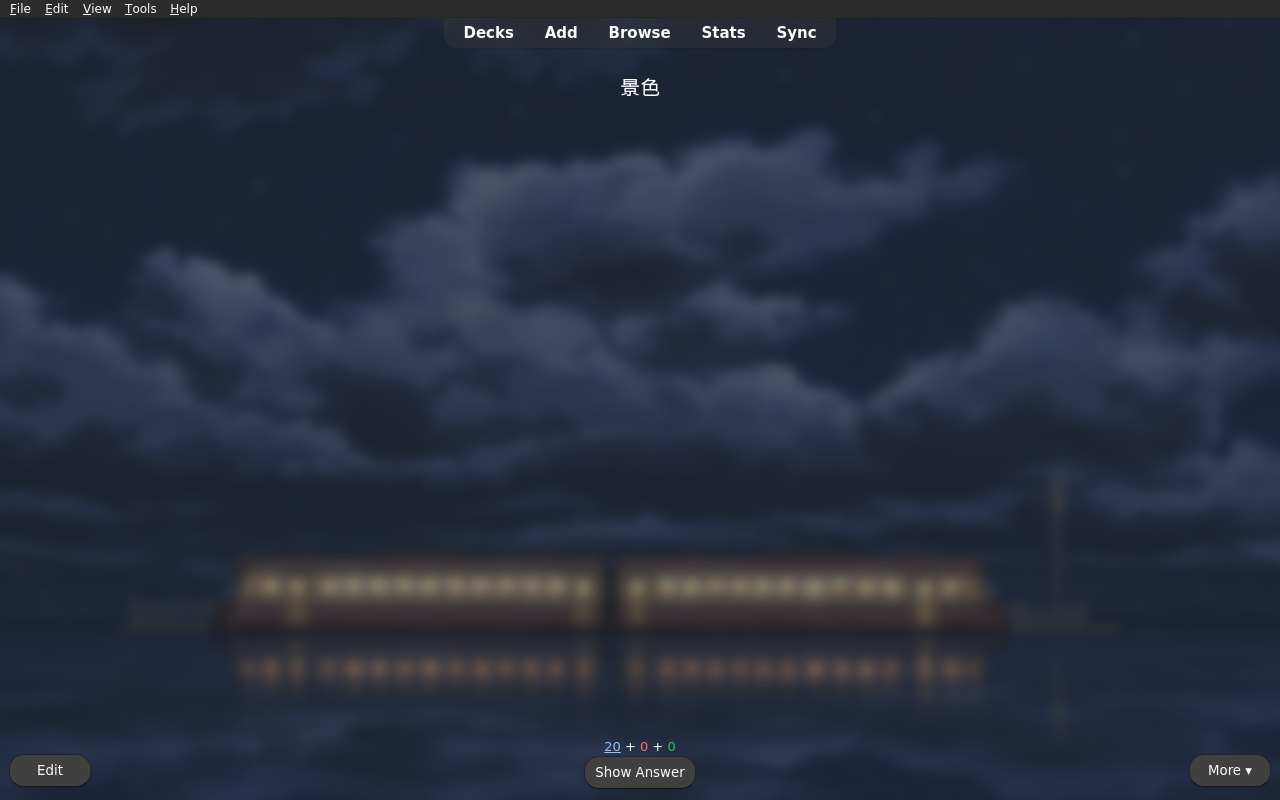
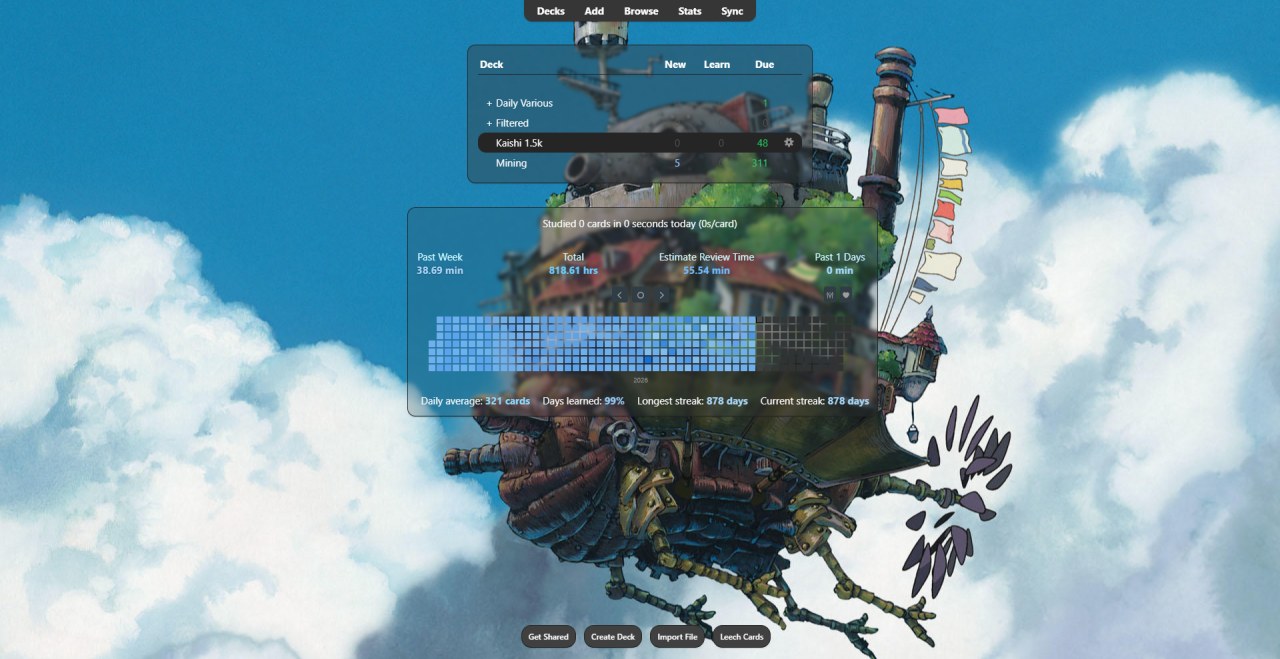
After installing, restart Anki and open Tools → 🖼️ Keshiki. Drag along a day cycle's timeline, or press play to watch the next 24 hours; Anki's main window follows along.
Your location is only looked up if you click Find my location.
Needs Anki 26.08 or newer. Turn off other background add-ons (like Custom Background Image and Gear Icon) while you use it.
Background scenes for Anki's main window that follow the sun through the day, and can change once you're done studying.


Open Tools → 🖼️ Keshiki.
Your edits show in the main window as you make them; if that's slow on your computer, untick Preview in Anki's window at the bottom, and it changes only when you save. Save keeps them and Cancel puts things back.

Screenshots use stills from Studio Ghibli films © Studio Ghibli.
For day cycles that follow the real sun, choose Use my location on Day & time. Click Find my location to look up a rough location from your internet address (through ipapi.co). Nothing is sent until you click it. You can also type coordinates instead.
Images are copied into the add-on's user_files folder, so they stay when the add-on updates. Picture library & trash... under the scene list shows which are in use; unused ones go to a trash, where you can restore them or empty it. A folder kept in step isn't copied at all, and hiding a picture in its album (the crossed-out eye) leaves the folder untouched.
A picture much bigger than your screen, like a camera photo, is shown from a copy sized for the screen, and on a screen with blur, a smaller one, the smaller the more the blur. Anki stays quick. Without blur, fine detail can look a little softer; to show pictures as they are there, turn off Optimize large backgrounds on the General page. On a screen with blur, the blur hides the difference, so copies are always used. If Anki still lags or stutters, try Tools → Preferences → Appearance → Video driver: OpenGL in Anki, then restart it. The copies are kept in user_files/display, up to 1 GB; your pictures are never changed, and deleting that folder is safe.
Keshiki needs Anki 26.08 or newer. Turn off other background add-ons (like Custom Background Image and Gear Icon) while you use it. They draw over its picture.
Keshiki's plumbing (wiring with Anki, settings page shell, live reload, build
and test tooling) is Kiso, bundled into keshiki/_kiso/ when it's
built.
python -m venv .venv && . .venv/bin/activate
pip install pytest ruff "aqt[qt]" -e ../kiso
ruff check . && python -m pytest -q      # bundles Kiso first
tools/qt_checks.sh --screenshots /tmp/shots   # real Anki, offscreen
kiso build                               # dist/keshiki-<version>.ankiaddon
kiso sync --watch                        # copy into your Anki's addons21/keshiki
v<version> makes a draft release with the .ankiaddon and its .sha256.__init__.py still need a restart.import keshiki; keshiki.reload_addon().logs/addons/keshiki/ folder, which Tools → Add-ons → View Files opens one level up.tools/qt_checks.sh fails on any deprecation notice Anki prints. Set KISO_STRICT_ANKI_NOTICES=1 to make pytest do the same; without it, notices are listed at the end of the run. On Linux the real-Anki checks need Qt's usual system libraries.